
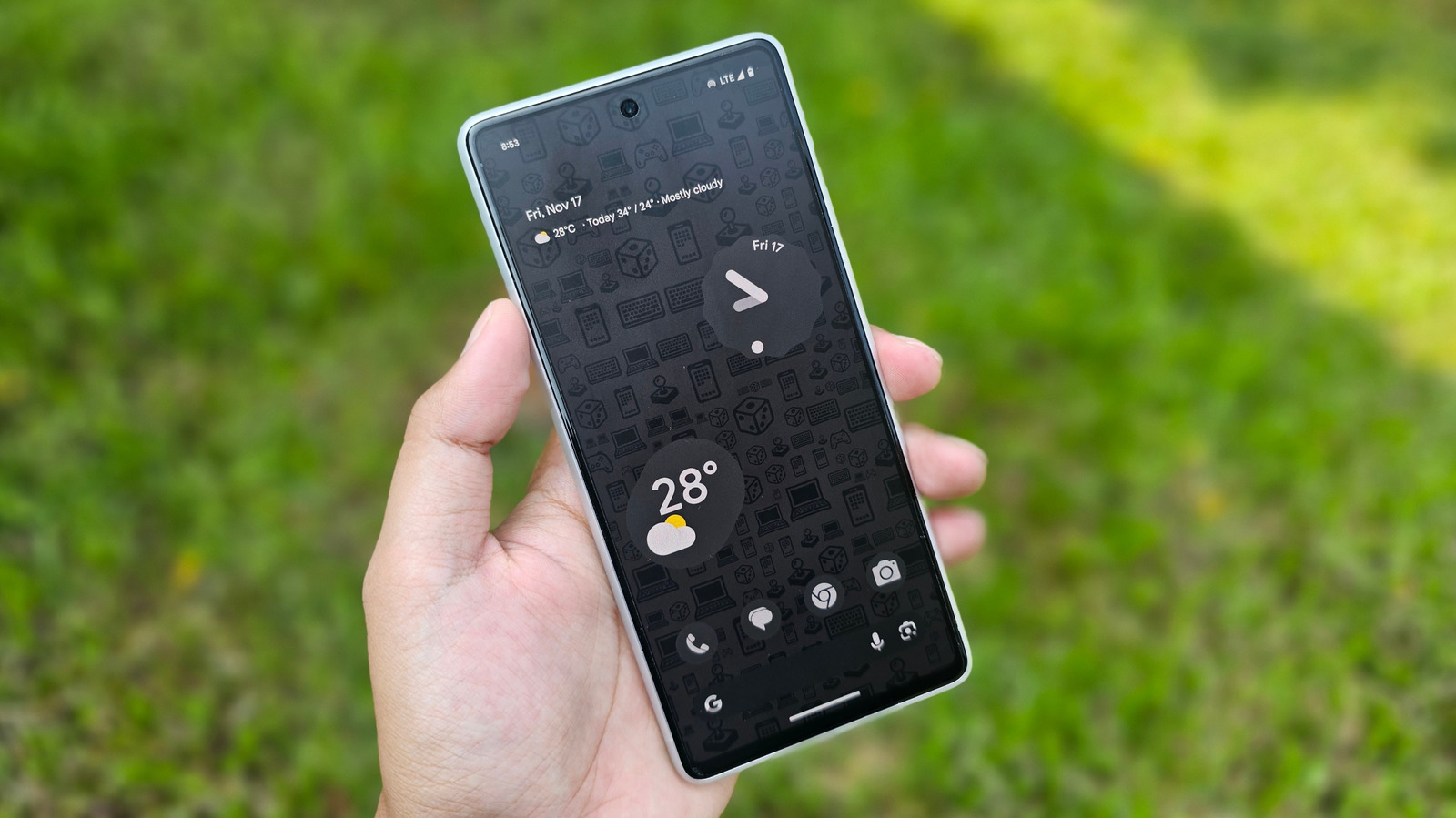

Most people use their Android home screen the same way they always have — have a row of icons, maybe a clock widget, and not much else. Many don’t even bother changing the wallpaper on their phone. But the home screen isn’t just about stacking icons; it is one of the most underrated productivity spaces on your phone. Widgets — small, specialized modules that provide instant access to the app — are a key part of converting your home screen into a productivity space. These interactive mini-applications on the home screen give you instant information or access to the tools that you use frequently.
The right widget can transform the way you move through the day, remember something, or check the weather before heading out, just by unlocking your phone. It eliminates the need to unlock your phone, find the app, open it, and then look for information. Unlike the iPhone, which introduced widgets later and more cautiously, Android has had them baked into the OS for years. And yet, most people don’t take advantage of what is available. There are probably a dozen apps on your phone that offer widgets you’ve never used. These tiny interactive windows into your apps are more powerful than they look.
If you are using an Android phone and haven’t gone beyond the basic home screen setup, then this list is for you. Each of these five widgets comes from apps that you already use or can grab for free from the Play Store.
Gemini Widget
When it comes to tackling a day completely solo, having a dedicated personal assistant is a blessing. And if that assistant lives directly on your phone’s home screen, then it is the best thing one can imagine. Many AI chatbots on the market can handle most of your tasks, but the one I trust is Google Gemini. No hate to others, but Gemini feels more personal because of its deep ties with the Google ecosystem and access to the latest information. It feels like an extension of all the Google apps that you use on your Android phone or your laptop — which is also what the Gemini Widget does.
It transforms a single bar into a dynamic brain that lives on your home screen and is ready to assist you instantly. When you add the Gemini Widget to your home screen and manually expand it, you don’t only get a shortcut to the chat interface. You are unlocking a live screen context analyzer that can read whatever is on display and respond to it. Tap on it when you are browsing a YouTube video, reading an article, or browsing a product page. If you are stuck on a project, you can fire off a query, and the widget serves up the details. It is one of the best ways to use Gemini on your phone.
You also get access to Gemini’s Deep Search mode, which can help you plan, navigate, and generate formatted reports. And if you rely on the Google ecosystem, you can install various Gemini extensions allowing it to fetch your Keep notes, summarize Drive files, and even pull content from your Google Calendar.
Overdrop – Weather widget
You cannot go wrong with weather widgets on your Android home screen. I have been using Android since the very first phone — HTC Dream — came out, and weather widgets have been a staple for me ever since. While every Android brand offers its own default weather widgets, I never found them quite good enough, until I found Overdrop. For me, weather was not just about getting info on the forecast; it was about how beautiful and readable the forecast appears on the home screen.
Overdrop widgets lean heavily on design, and for someone like me who loves customizing his Android phone, it fits the bill. The hourly and seven-day layouts are clean (though some of the widgets are too busy), the typography is sharp, and unlike other weather widgets, it doesn’t feel like an afterthought. Beyond that, data is also important, and Overdrop pulls it from different sources. You can also choose the provider from within the app. You also get info such as wind speed, UV index, humidity, and feels-like temperature.
Some people use any weather widget and claim that such apps don’t serve their purpose. Actually, they aren’t using the best one and setting it up as they should. Overdrop, once tweaked to your liking (though the default setting also works well), may become the most used widget on your screen, as weather data this good-looking is just fun to look at, if nothing else.
Google Keep
Google Keep is the lightweight note-taking app from Google. It is meant to quickly note down your thoughts and use them for later purposes. Once you add a Google Keep widget to your home screen, you can take notes anytime, anywhere, without needing to open the app. The Google Keep widget also includes a slim row of icons that lets you instantly start a new note — typed text, voice memo, checklist, photo, or drawing. You can use any of these options to draft a quick grocery list, save a brilliant idea for your next YouTube video, or snap a photo of a receipt. The widget ensures that your thoughts are saved securely.
It is one of the best Android home screen widgets, as it plays a huge part in keeping you productive. The Keep widget lets you scroll through your pinned notes, check off completed tasks, and even color-code your reminders without ever leaving your home screen. Grocery lists, meeting reminders, and half-finished ideas all sit there, glanceable, without the need to open the app. This is special for people who keep creating to-do lists or want to have reference information handy. The widget updates dynamically, so when you check off a task on Keep, it reflects immediately.
What sets the Google Keep widget apart from other note-taking app widgets is that it bridges the gap quite seamlessly with the app. For instance, Evernote’s widget is slow, takes time to sync, and frequently crashes when taking notes, which is not something you want to deal with when you have just come across a million-dollar idea.
Samsung Internet Browser
This one might catch you off guard, especially those who don’t use a Samsung Galaxy phone, because yes, the Samsung Internet Browser is available on the Google Play Store for all Android devices. While many use Google Chrome as their default browser, I have switched to the Samsung Internet Browser and have never looked back. The widget is deceptively quite handy. It shows a search bar right on your home screen, so web searches happen without ever stopping to open a web browser. One tap on the widget, type your query, and you are off.
The Samsung Internet Browser widget is handy when you want to quickly check the headlines, do product searches, or casual lookups to your favorite websites. The widget is as good as the app is, and the Samsung Internet Browser is actually very good. It supports ad blocking natively through extensions, has a built-in reading mode, and offers solid tab management. The widget serves as an entry point to a browser that is often dismissed as a Samsung-only product. In reality, it is one of the best alternatives to Google Chrome on Android.
Most people keep the browser either buried inside the app drawer or give it a place on their home screen. However, tapping on the icon takes a bit of time to open the app, and you have to look for the search bar at the top or bottom, and feed your query. The widget brings the search bar directly to your screen, so no app opening.
Google Maps Live Traffic
Last but not least, we have a widget that is too obvious once you realize it exists. Most of us use Google Maps for navigation. There are some alternatives to Google Maps, but the user-friendly interface and familiarity make it a popular navigation app for millions around the world. The Google Maps widget, on the other hand, is a great thing to have on your screen if you use it for your daily commute. Making the Google Maps Live Traffic widget a part of your Android home screen completely shifts the power into your hands.
With the widget, you instantly get to know how much time you need to spend on the road before you go out. It is quite useful for people who live in an area that gets busy during work hours or at certain times of the day. A glance at this widget tells them if it is the right time to commute or whether they should wait for some more time. If there is a traffic jam or the road is busy, then it will be reflected immediately with appropriate color coding — red for heavy traffic, yellow for medium traffic, and green for light or no traffic.
There is also a Traffic widget, which shows you traffic details about your most visited place. Tapping on it quickly shows you the time it will take to reach the place and whether the road is clear or there is congestion ahead. The Google Maps widget provides a sense of convenience to ensure that your daily ride remains as smooth, efficient, and peaceful as possible.

Comments are closed.