
3 Things You Should Only Plug Into Your Computer’s USB 3.0 Port (And One Thing You Shouldn’t)

We may receive a commission on purchases made from links.
Nothing is more confusing in the tech world than USB. First, there’s understanding every USB port symbol and icon. Some USB ports are orange and some USB ports have lightning bolts. That’s before we even get started on the famously confusing fragmentation of standards when it comes to USB-C. Unfortunately, this means you can’t just plug things in indiscriminately into your computer’s USB-A ports (the rectangular-shaped USB ports, not the USB-C stadium-shaped ports). Certain devices will perform like a dream when plugged into USB-A 3.0 yet will otherwise be painfully slow — and sometimes virtually unusable — when plugged into USB 2.0.
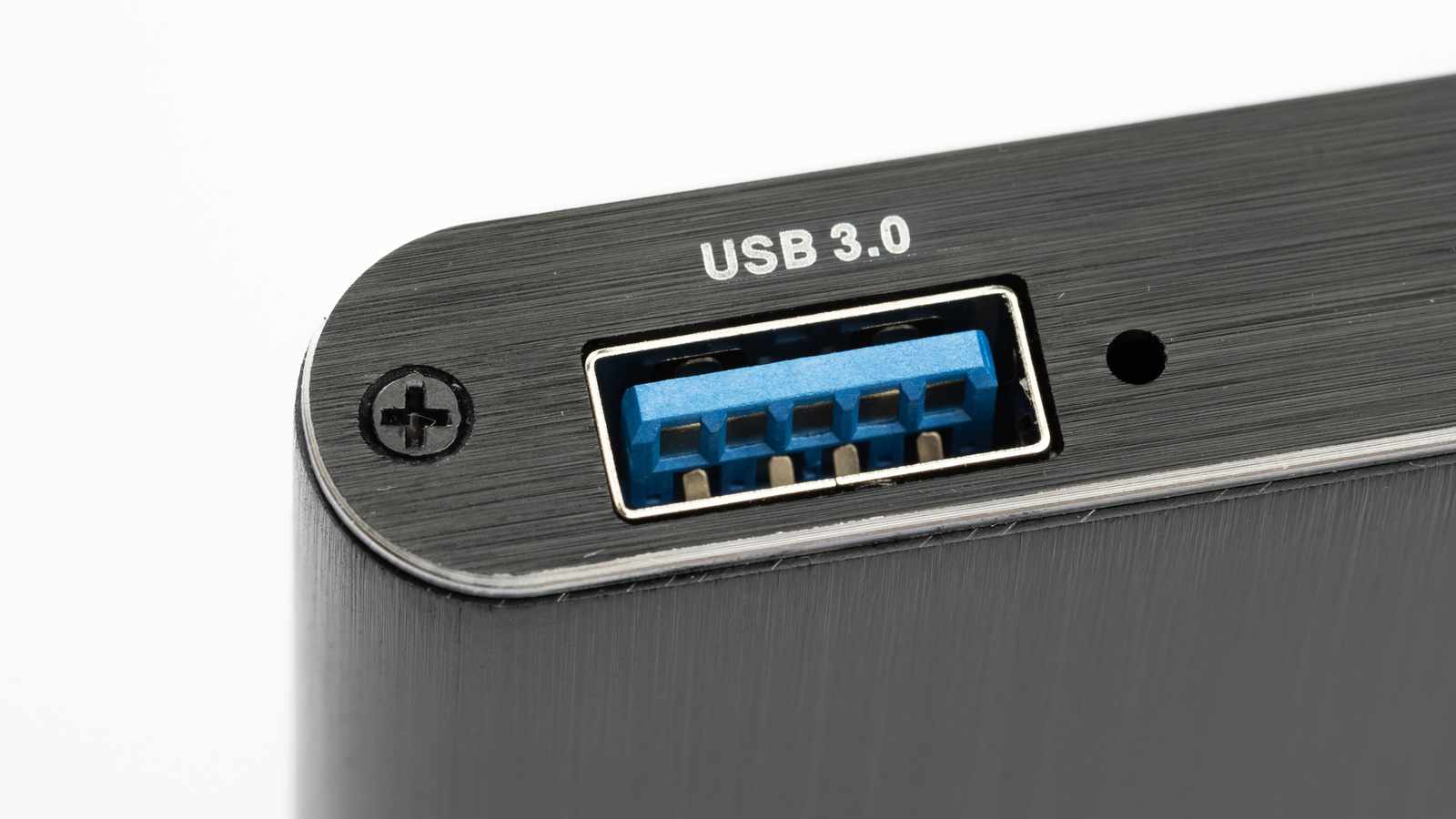
We could throw a bunch of numbers at you, but the most important thing to understand is that USB 3.0 is way faster and more performant than USB 2.0. USB 3.0 was a standard introduced in 2009, versus USB 2.0 in 2000. Physically, USB 3.0 has a blue block on the inside whereas 2.0 has a black one. We’ll look at three devices you should plug into your USB 3.0 port, and the devices you shouldn’t.
Hard drives and USB drives (especially SSDs)
When you plug a hard drive into your PC, you’re hoping to back up or transfer files as quickly as you can — unless you’re some sort of masochist. However, one might be tempted to plug an old external HDD into a USB 2.0 port, thinking it won’t make a difference because spinning disk drives are much slower than SSDs. Don’t be fooled. One of the things you should know before buying an external hard drive is that HDDs may be slower, but they’re not that slow. Take this Seagate Portable 2TB External Hard Drive. It supports USB 3.0 and its maximum data transfer rate is 130 MB/s (megabytes per second), which translates to 1040 Mbps (megabits per second). That’s more than double USB 2.0’s ceiling of 480 Mbps. So plugging it into the correct USB-A port could literally double the speed of any file transfer.
SSDs are no exception. USB 3.0 maxes out at 5 Gbps, about three times that of the HDD we mentioned. Let’s look at this 1TB SAMSUNG T9 Portable SSD and suppose for a second you only have a USB 3.0 port available. The Samsung can support up to 2,000 MB/s, which translates to 16,000 Mbps. USB 3.0 wouldn’t be able to use its full speeds, but you could still get about a third of that with USB 3.0 at its maximum of 5 Gbps (5,000 Mbps).
Definitely plug a USB-C drive into a USB-C port first, that’s obvious. But if the choice is between USB 2.0 and USB 3.0, give hard drives USB 3.0. A USB 3.0 port might be preferable if you’re using an overloaded USB hub, where the shared bandwidth can slow down your hard drive.
USB hubs
Speaking of USB hubs, you should also plug a USB hub into USB 3.0, hands down, no questions asked, for the same reason as hard drives: data transfer rates. We’ll use the Ugreen USB 3.0 Hub as an example. It supports USB 3.0 at its full 5 Gbps, with four USB 3.0 ports. So imagine if every single one was occupied. Even if a couple are being used with low-demand peripherals like mice and keyboards, they have to share bandwidth with the other devices. USB 3.0 can handle multiple devices as long as they collectively stay below 5 Gbps, while USB 2.0 would tap out early.
There’s also the issue of power draw. USB 3.0 can deliver almost double the power of its predecessor: 900 mA versus 500 mA. If you’re planning on using a USB hub to charge your phone or run some other powered device, that’ll again make a huge difference. Using a USB 3.0 hub with a USB 2.0 port is, for all intents and purposes, hobbling its legs and making it hop instead of run. Lastly, USB 3.0 offers two unidirectional data paths, unlike USB 2.0 with its single-direction data path. There are other physical hardware advantages to USB 3.0, like the number of wires it uses and how it uses the USB bus interface. Needless to say, it’s just better in every way.
That said, if you’re going to invest in a USB-C dock for heavy use, we’d highly recommend choosing USB-C if your computer has a USB-C port. Transfer rates and power draw will be much better. For basic uses (dongles, USB flash drives, etc.), USB 3.0 with a USB-A port will get the job done.
Electronic devices (like smartphones)
Plugging your smartphone, tablet, or e-reader into your computer would run into the same data transfer limitations as a hard drive. Most phones (and many devices) made in the past five years or so use USB-C, so we’d recommend a USB-C to USB-C cable first, but USB 3.0 to USB-C will do fine unless these are going to be large file transfers. The same goes for charging a phone. Plugging your phone into USB 2.0 could leave you potentially waiting for hours to get a full battery.
It’s more than just transferring files that could get bogged down by using the wrong USB port. For example, say you need to boot into ADB on your Android phone to run recovery or flash a different OS. Based on personal experience, this isn’t exactly a fast process, even on USB 3.0 when you need to flash a multiple-gigabyte image to the phone. You could be sitting there forever with USB 2.0. The same applies to an Apple device being restored via a Windows PC; just use USB 3.0. Other processes that require a computer like, say, jailbreaking your Kindle, will also benefit from the faster speeds of USB 3.0. The mere process of transferring large audiobooks to an e-reader over USB-C, movie files to a tablet, or anything else you can imagine will also be noticeably snappier with USB 3.0.
Don’t plug this one thing into USB 3.0 ports
We may have given the impression that everything should be plugged into USB 3.0 if you have an available port. After all, what doesn’t benefit from more speed, more power, and better overall performance? Surprisingly, some devices perform worse with USB 3.0 than USB 2.0. Specifically, 2.4 Ghz devices like mice and keyboards.
Because of the way USB 3.0 works compared to USB 2.0, there’s a lot of extra radio interference that can hamper the performance of 2.4 GHz devices. Think a stuttering cursor instead of a smooth one. Both plugging a USB 2.4 GHz dongle into a USB 3.0 port or placing that dongle near a USB 3.0 port can ruin how well your mouse performs. Many people have found that using a USB extender can resolve the issue. The whole point of a 2.4 GHz mouse is getting the fastest, smoothest performance, so while these measures may seem a bit extreme, they can be well worth the effort if you run into connectivity issues. Don’t worry about USB 2.0 being too slow for a mouse. It’s plenty.
I’ve personally seen how this can rear its ugly head in my own setup and that of friends. If you find yourself constantly having Bluetooth issues (Bluetooth is also on the 2.4 GHz spectrum), then this could explain why. Repositioning a USB hub (or laptop) that’s on your desk to keep it away from your peripherals and/or using extenders could suddenly make all of those issues vanish. Trust me, I’m talking about going from choppy Bluetooth headset calls, constant mouse stuttering, and keyboard unresponsiveness to excellent wireless device performance once that interference is accounted for.

Comments are closed.