
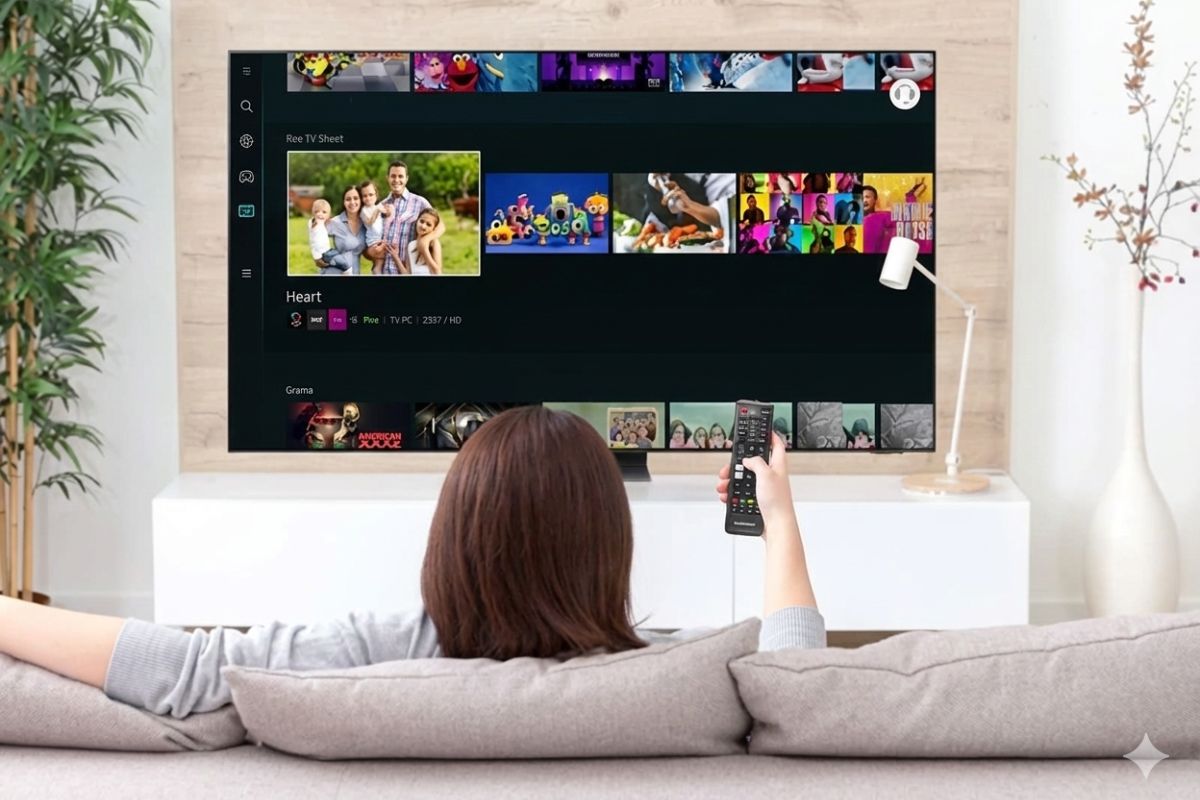

Smart TV Settings: Many users buy a new Samsung TV and start using it without changing the settings, whereas this is the biggest mistake. Default settings often affect picture quality. Taking a few minutes to adjust the correct settings can greatly improve the experience of watching movies, shows and sports. Let us know those four settings, changing which will significantly improve the picture quality.
turn off eco mode
Samsung TVs often have Eco Mode already on, which lowers brightness and contrast to reduce power consumption. However, this limits power savings. To turn it off, press the gear (Settings) button on the remote, then go to All Settings, select General & Privacy, and then go to the Power & Energy Saving option. Here click on Energy Saving Solution and turn it off.
Turn off Brightness Optimization
Go to the Power and Energy Saving menu and turn off Brightness Optimization. Today’s Samsung TVs have light sensors that change the brightness and color of the screen depending on the lighting in the room. This feature seems effective, but it actually degrades the picture quality. This option is also present in the setting to turn off Eco Mode.
Set Movie, Cinema and Filmmaker picture modes
Movie, Cinema, and Filmmaker modes on Samsung TVs more accurately display colors and reduce unnecessary image processing, making pictures look more natural. To change these settings, go to All Settings, then go to Picture options. Avoid Dynamic mode, because in this the colors become more vivid and the picture starts looking artificial. These modes are actually meant to make the TV look attractive in stores.
The correct screen brightness depends on the type of content you are watching. Brightness should be different for SDR and HDR videos, which can be set separately on Samsung TVs.
Set brightness levels separately for SDR and HDR content
How to set brightness for SDR?
Open any streaming app, but do not play the video. Then go to All Settings, Picture, then Expert Settings and Brightness. Set the slider here as per your needs.
How to set brightness for HDR?
Play an HDR video first. You can find such content by searching for HDR videos on YouTube. While playing the video, go to the same Brightness option and adjust the slider.

Comments are closed.