
iPhone Face ID Not Working Properly? Try This Apple’s Hidden iOS Setting, How It Works And Follow THESE Steps To Set It Up | Technology News

iPhone Face ID Not Working: Unlocking your iPhone should be quick and easy. You pick up the phone, look at the screen, and expect it to open right away. But sometimes Face ID feels slow or does not work at all. It may fail in low light, when you wear glasses, or when you change your hairstyle. This can be annoying, especially when you are in a hurry. Many users think this happens because of a phone problem or old software.
However, the reason may be much simpler. There is a hidden setting in iOS that many people do not know about, and turning it on can help Face ID recognize your face better and work faster. Apple offers this option as Alternate Appearance within the Face ID settings. While many users are unaware of its purpose, this feature is designed to improve Face ID reliability, especially for those who face frequent recognition failures in daily use.
Apple’s Alternate Appearance Feature: How It Works
Add Zee News as a Preferred Source
This feature lets users scan their face a second time in different conditions. Instead of using just one face scan, Face ID learns from two scans, which helps it recognize you more accurately from different angles or looks. It works well if your appearance changes often, such as when you wear glasses, grow a beard, or change hairstyles.
However, this setting is not meant for sharing your phone with someone else. Apple clearly says that Alternate Appearance is only for the same user and not for allowing another person to unlock your iPhone. (Also Read: Amazon Great Republic Day Sale 2026: From iPhone Air To OnePlus 15R; Check Top Deals On Budget-Friendly Smartphones)
Apple’s Alternate Appearance Feature: How To Set Up
Step 1: Open the Settings app on your iPhone and tap on Face ID & Passcode.
Step 2: Enter your device passcode to access Face ID settings.
Step 3: Scroll down and tap on Set Up an Alternate Appearance under Face ID controls.
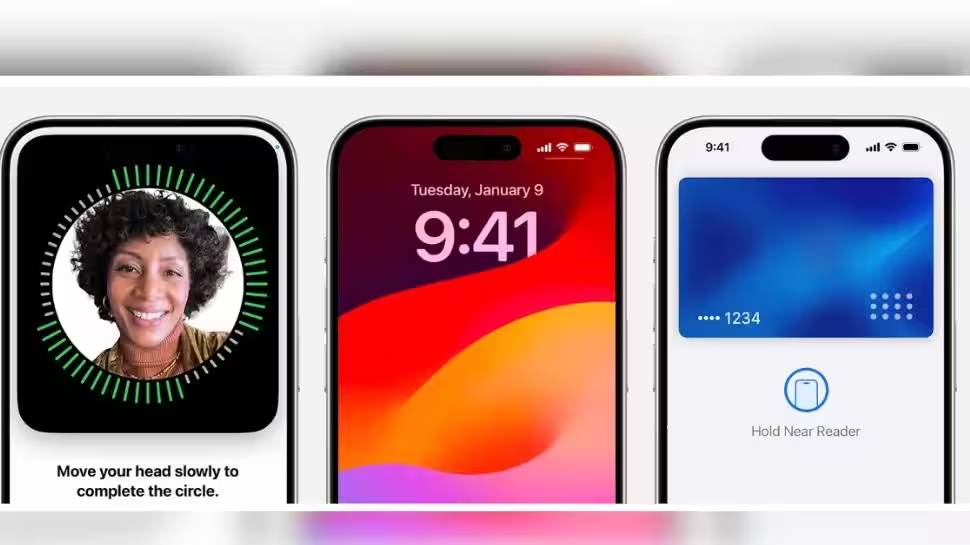
Step 4: Follow the on-screen instructions by placing your face in the frame and slowly moving your head. Keep the phone about 25 to 30 centimeters away.
Step 5: Scan your face in conditions where Face ID usually fails, such as wearing glasses, makeup, or holding the phone at different angles.

Comments are closed.