
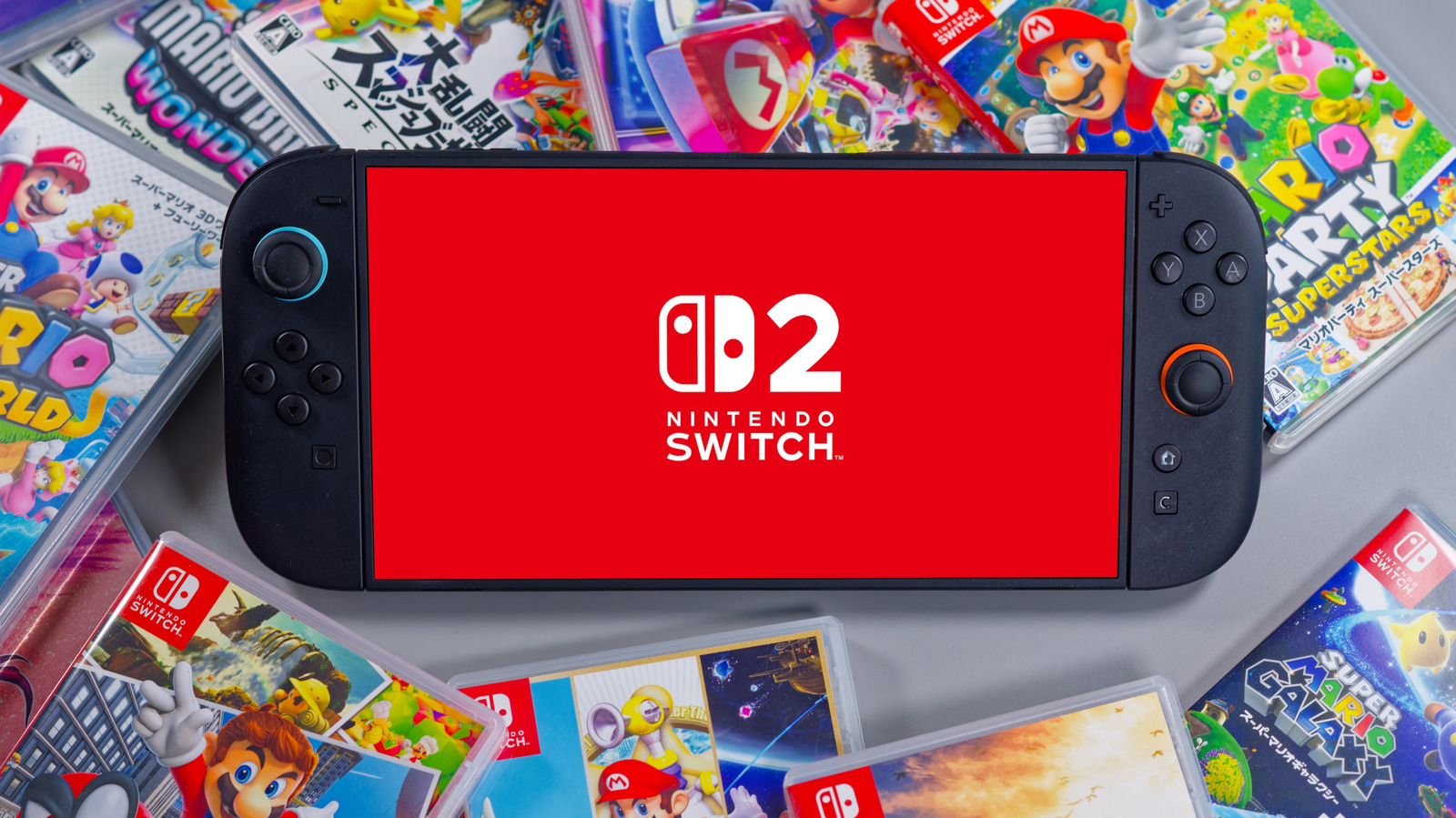

The original Nintendo Switch that launched in 2017 arrived at a time when the gaming industry had a clear divide between bulky consoles or PCs and portable handhelds. It combined these two systems into a single device, allowing you to enjoy games on the go while offering you the ability to dock it and experience your games on the big screen. The Switch 2 arrived eight years later in 2025, featuring upgrades in every area — especially performance. Nvidia claims that the Switch 2 brings ten times the graphics performance of the original Nintendo Switch, likely thanks to AI upscaling through DLSS.
Our review of the Nintendo Switch 2 highlighted how enjoyable playing a rather demanding title like “Split Fiction” was. Of course, nothing beats the crowd favorite “Mario Kart World,” which offers a more relaxed, couch-gaming experience. Irrespective of which genre you prefer, the Switch 2 is packing some seriously capable hardware underneath, powerful enough to run graphically intensive games like “Cyberpunk 2077” and “Assassin’s Creed Shadows.”
For the most part, your Nintendo Switch 2 is designed to handle games quite gracefully out of the box. Since it’s a handheld, it’s common for performance to scale down when you’re running on battery instead of being connected to a power source. However, if you have been experiencing noticeable performance issues on your Switch 2, it could be worthwhile to check a few settings and make a few tweaks that directly affect frame rate and connectivity.
Switch to 120 Hz for smoother gameplay
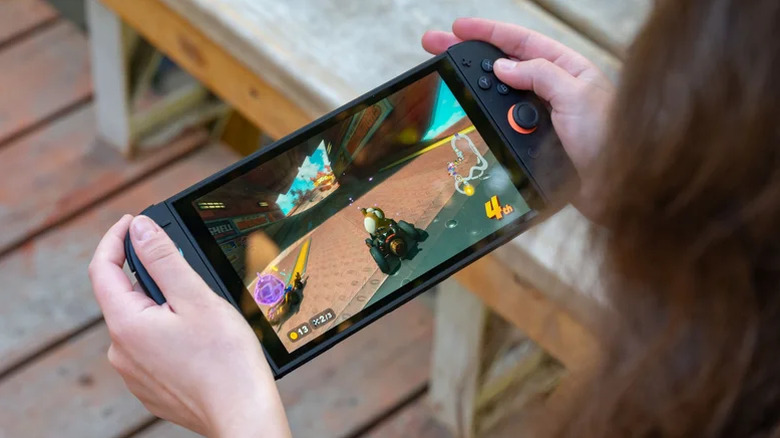
For the longest time, consoles have been able to handle games at 60fps at most — with many PS4 titles like “Grand Theft Auto V” actually being capped at 30fps at 1080p. If you’ve exclusively been a console gamer, then a 60fps gaming experience can be totally enjoyable — but playing at higher frame rates instantly changes how responsive a game feels. Current-generation consoles like the PS5 can push 120fps in supported games — and so can the Nintendo Switch 2.
Among the several new features in the Nintendo Switch 2, its ability to run games at 4K or 120fps stands out as one of the biggest upgrades over its predecessor. Unfortunately, it cannot do both at once — you either have to pick between 4K at 60fps or 1440p or 1080p at 120fps. Gaming at 4K is ideal if you’re playing visually rich titles like “The Legend of Zelda: Tears of the Kingdom,” but for faster-paced games, you will benefit greatly from twice the amount of frames.
The list of 120fps-compatible games for the Switch 2 isn’t very expansive, though, and you will need a TV or monitor that can output at 120 Hz as well. If you do own a supported game, head to Home on your Switch 2 and navigate to System Settings > Display. Scroll down and set the “TV Resolution” option to “Automatic.” Look for the “120 Hz Output” toggle, and enable it. Also, turn on the “Auto Low-Latency Mode” option.
Connect to a 5 GHz Wi-Fi network
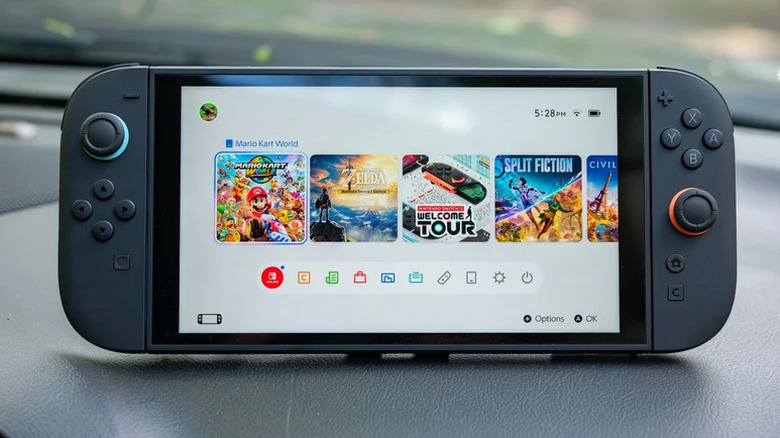
The most significant difference between 2.4 GHz and 5 GHz Wi-Fi is speed. The latter can handle speeds up to 10 times as fast as 2.4 GHz. Assuming your internet plan and router can both push higher speeds, modern electronics like smartphones and computers can make the most by connecting to the 5 GHz frequency band. The Nintendo Switch 2 also supports connectivity with both 2.4 GHz and 5 GHz networks.
Though slower or unstable Wi-Fi speeds don’t directly affect frame rate, they can be a bottleneck that impacts the overall gameplay itself. Apart from slower download speeds, you may experience network-related issues in online multiplayer games. This includes rubber banding, increased latency for controls, or worse — sudden disconnects.
Network problems in games are typically not caused by slower speeds — rather, they stem from unstable connections. Your router’s 2.4 GHz frequency band might be overcrowded with other devices. If your router is set up in a way that separates the 2.4 GHz and 5 GHz bands into different SSIDs, make sure you connect your Nintendo Switch 2 to the faster frequency band manually.
New routers come with band steering, which is a feature that automatically routes devices to the ideal frequency band. Your Switch 2 should automatically connect to the 5 GHz network, but you might want to double-check which band it’s actually using by navigating to System Settings > Internet > Internet Settings.
Optimize storage and thermals for better performance
An advantage of picking a console over a gaming PC is that you don’t need to fiddle around with a lot of settings just to achieve optimal performance. The Nintendo Switch 2 is tuned just right, and there’s not much you can do to boost performance like you can on a Windows computer running custom hardware. That said, maintenance still plays a crucial role in ensuring your Switch 2 continues to perform as well as it did the day you took it out of the box.
The Nintendo Switch 2 comes with 256 GB of internal storage space — some of which is occupied by system files. Storage expansion is possible, but only through microSD Express cards. These are different from regular microSD cards, which the Switch 2 will not accept. For the best performance and read speeds, however, we recommend storing your frequently played games on the Switch 2’s internal drive and offloading other games to the microSD Express card.
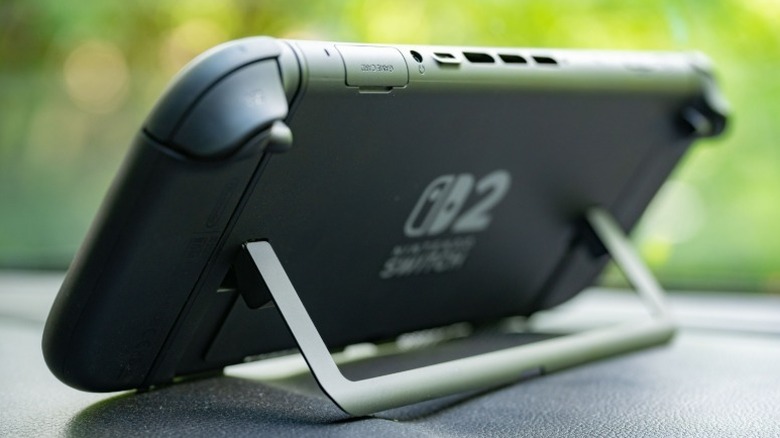
The Switch 2 uses active cooling, and Nintendo warns against covering any of the vents during operation. Doing so prevents proper airflow, leading to overheating, which ultimately causes thermal throttling. Safely cleaning your Nintendo Switch periodically will also help maintain optimal temperatures. Another tip for quicker game launch times is to disable the profile selection screen that the Switch 2 prompts you with every time. Navigate to System Settings > User, and toggle the “Skip Selection Screen” option.

Comments are closed.