
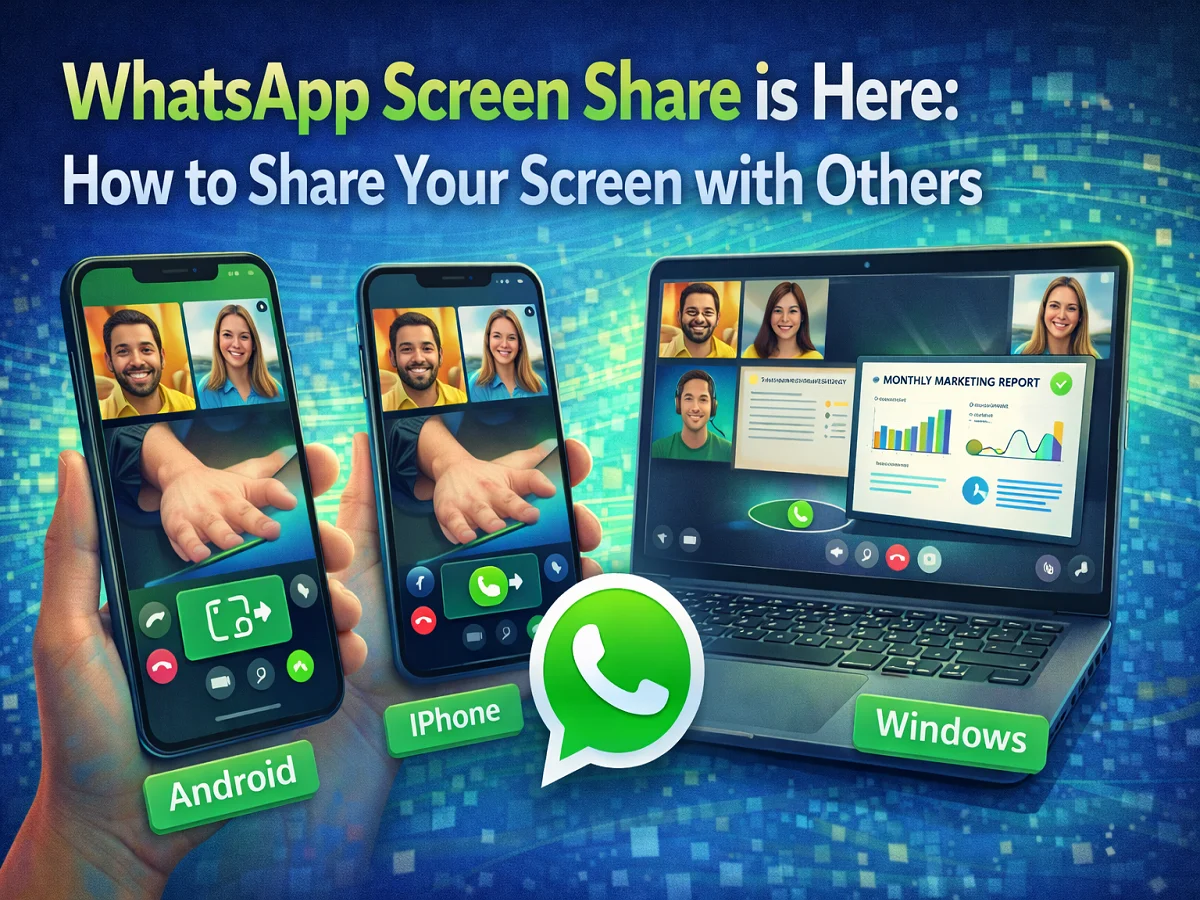

WhatsApp is constantly improving the experience of its users by adding new features. In this series, the company has launched a new Screen Sharing Feature Has introduced, with the help of which users can share their screen with others during video call.
Through this feature you can Can show phone or computer screen live. This makes it easier to explain how to use an app to someone, show a photo or document, or help solve a technical problem.
Screen share feature of WhatsApp Android, iPhone and Windows computers Available at.
What is WhatsApp Screen Sharing feature?
With the help of Screen Sharing feature, you can show your device’s screen to other people during video call.
It can be used for many purposes:
- explaining how to use an app
- To show a presentation or document
- To share photos and videos
- solving technical problems
this feature Both personal and group video calls Works in.
Things to keep in mind before sharing screen
Keep a few things in mind before using this feature.
- of WhatsApp latest version must be installed
- Screen sharing केवल Works only during video calls
- this feature Available in both group calls and personal calls
- screen during call Screenshots can be takenso avoid sharing sensitive information
How to Share WhatsApp Screen in Android and iPhone
step 1
First of all WhatsApp app Update to latest version।
Step 2
Open WhatsApp and tap the person or group you want to share the screen with. make video call।
Step 3
down during video call Screen Share icon Will be seen.
Step 4
Tap on this icon and screen sharing will begin.
How to Share WhatsApp Screen in Windows
step 1
From Microsoft Store Update WhatsApp Desktop App।
Step 2
Open WhatsApp and start a video call.
Step 3
Now Screen Share button Click on.
Step 4
Here you can choose:
- Want to share the entire screen
- or a specific app window
Step 5
after this Share Start screen share by pressing the button.
WhatsApp’s new Screen Sharing Feature Makes video calls more useful. With this, users can easily share information by showing their screen.
This feature is especially useful when you need to explain something to someone or show a solution to a problem.

Comments are closed.