
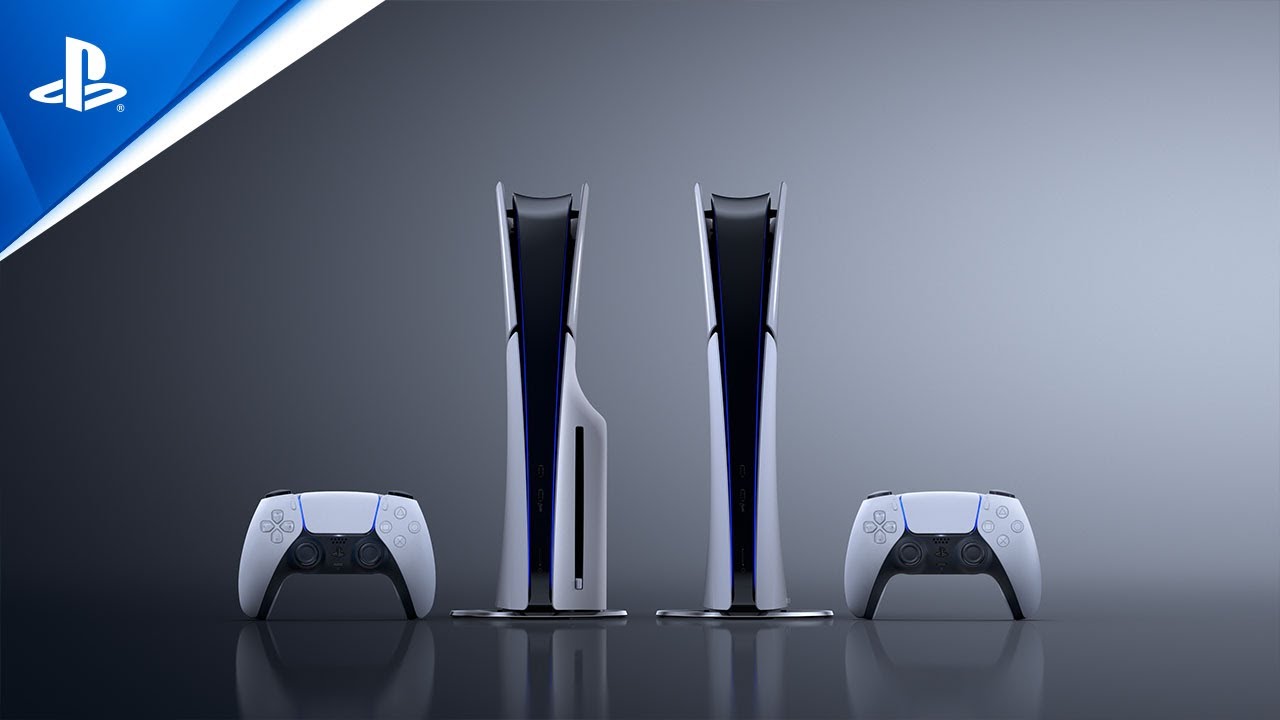

The PlayStation 5 Pro introduces a powerful upgrade to Sony’s gaming ecosystem, and one of it most talked-about features is PSSR 2. Short for PlayStation Spectral Super Resolution 2, this technology enhances image quality, boosts performance, and makes games look sharper without sacrificing smooth gameplay. If you have recently upgraded to the PS5 Pro or are planning to, learning how to enable and use PSSR 2 properly can significantly improve your gaming experience.
What Is PSSR 2 And Why It Matters
PSSR 2 is an advanced upscaling technology designed to improve visual quality while maintaining high frame rates. Instead of rendering every frame at native resolution, the system intelligently upscales lower resolution images to near-native quality. This allows games to run smoother without looking blurry.
The benefits of PSSR 2 include:
Sharper textures and cleaner edges
Better performance in demanding games
Reduced strain on hardware during high-intensity scenes
Improved consistency in frame rates
This is especially useful in modern games that push graphical limits. With PSSR 2 enabled, you can enjoy a balance between visual fidelity and performance.
Checking If Your Game Supports PSSR 2
Before trying to enable PSSR 2, it is important to know that not all games support it. Developers need to optimize their games for this feature.
To check compatibility:
Open the game’s settings menu
Look under graphics or display options
Search for terms like “PSSR,” “Super Resolution,” or “Upscaling Mode”
If the feature is available, you will usually find multiple modes such as Quality, Performance, or Balanced.
How To Enable PSSR 2 On PS5 Pro
Enabling PSSR 2 is simple, but the exact steps may vary slightly depending on the game. Follow these general steps:
Turn on your PlayStation 5 Pro and log into your account
Launch a supported game
Go to the Settings menu within the game
Navigate to Graphics or Display Settings
Locate the PSSR or Upscaling option
Select your preferred mode
Apply changes and restart the game if required
Once enabled, the game will start using PSSR 2 to enhance visuals and performance.
Choosing The Right PSSR 2 Mode
Most games that support PSSR 2 offer multiple modes. Each mode is designed for a different type of player.
Here is a quick breakdown:
Quality Mode: Focuses on the best possible visuals with higher resolution and detail
Performance Mode: Prioritizes smoother gameplay with higher frame rates
Balanced Mode: A mix of both quality and performance
If you enjoy cinematic visuals and slower-paced games, Quality Mode is ideal. For competitive or fast-paced games, Performance Mode is the better choice.
Adjusting System-Level Settings
In some cases, you may also find system-wide settings that influence how PSSR behaves.
To check:
Go to the PS5 Pro Home Screen
Open Settings
Navigate to Screen and Video
Review output and performance preferences
While PSSR is mostly controlled in-game, ensuring your system settings match your display capabilities can improve results.

Comments are closed.