
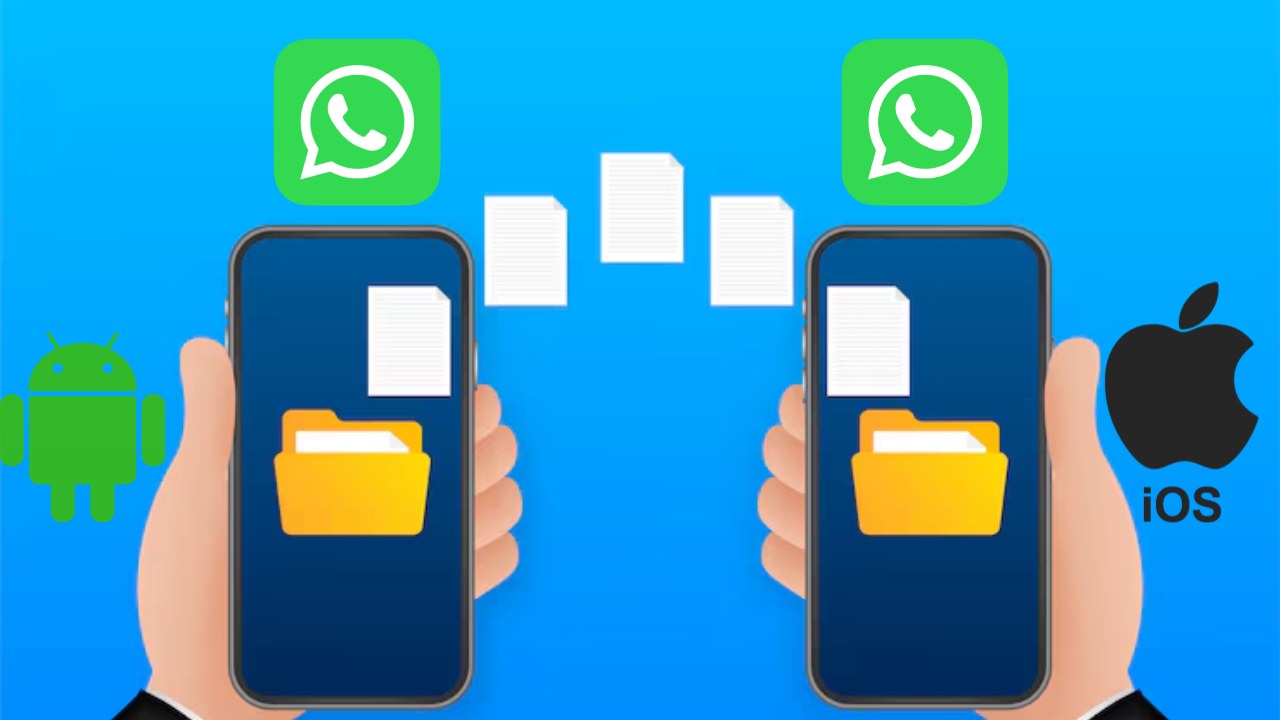
WhatsApp chat will not disappear if you change the phone, know how to transfer data from Android to iOS

iPhone to Android WhatsApp Transfer: Changing phones, especially iPhone Android or Android to iPhone But going has always been a big problem. The biggest worry is that important chats, photos and videos of WhatsApp may not be lost. Many times, despite having inbuilt tools, users have faced data loss.
but now WhatsApp Has found a solution to this big problem. The company has launched a new feature, through which you can easily transfer your entire chat history from one phone to another.
What is the new cross-platform feature?
This new feature of WhatsApp makes chat transfer between iPhone and Android very easy. Through this you can transfer your chats, photos, videos, voice notes, documents, even channels and communities. Its biggest advantage is that you will not have to start afresh. You can continue your conversation from where you left off.
How does chat transfer happen?
The special thing about this feature is that the data is transferred directly between your old and new phone. For this, cable or local Wi-Fi is used. WhatsApp claims that during transfer, your data does not pass through any cloud server and remains completely safe. According to the company, “WhatsApp also states that it can neither see nor access the data being transferred.”
How much time will the transfer take?
Chat transfer time depends on your data. If your chat history is longer, this may take a little longer. The important thing to keep in mind is that you start the transfer process before setting up WhatsApp on your new phone. If you’ve already installed the app, you’ll need to reinstall it.
Keep these things in mind
- Cannot merge old and new chats
- Direct transfer to another number is not possible
- WhatsApp Business chat, status and payment messages will not be transferred.
Also read: End the tension from spam calls throughout the day, TRAI’s DND app will block the number
How to transfer chat?
- Open WhatsApp on iPhone and go to Chats > Transfer chat history > Transfer to Android
- Tap on Continue and grant necessary permissions
- Open WhatsApp in Android phone and login with the same number
- Connect both devices by scanning the QR code
- Connect to Wi-Fi and start the transfer
- Once the process is complete, tap Next and view the chats
pay attention
This new feature of WhatsApp has brought relief to millions of users who were afraid of losing their memories while changing phones. Now you can use your new phone without any tension.

Comments are closed.