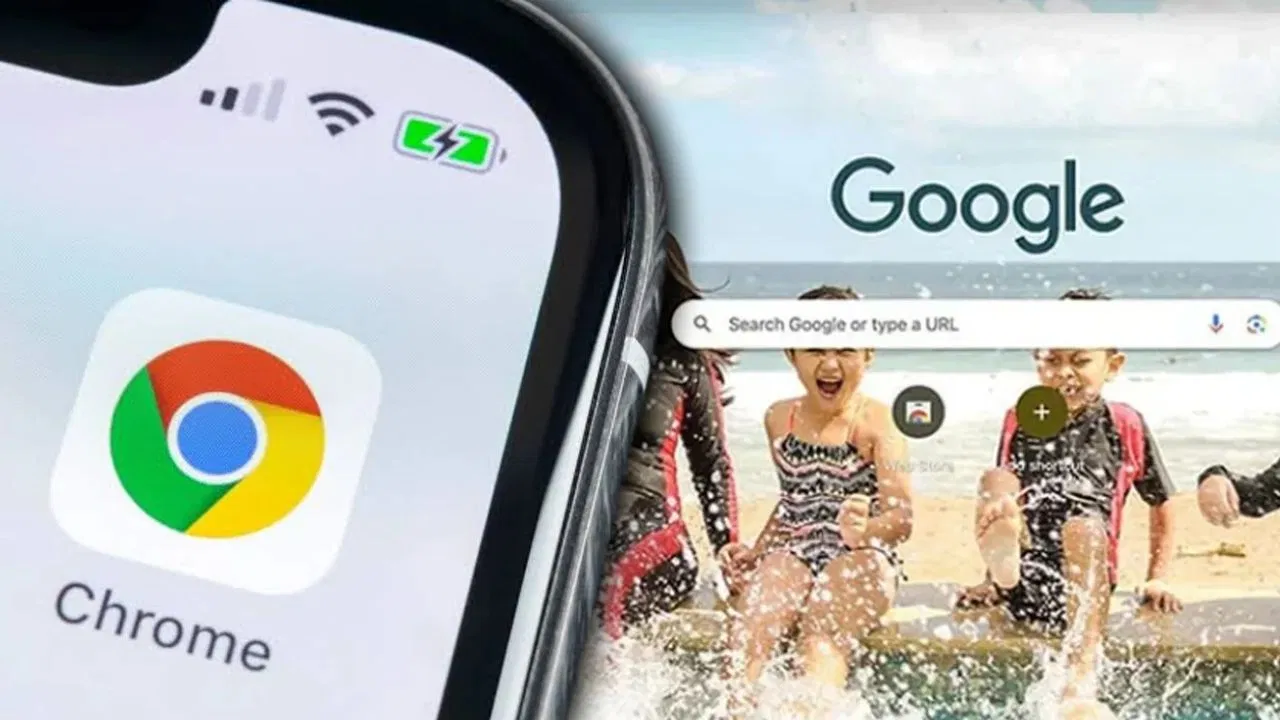
Tezzbuzz Desk- If you are also bored of seeing the old and uniform background of Google Chrome, then now it can be easily changed as per your choice. With the help of Customize Chrome feature present in Chrome, you can put a photo of your choice on the screen of the new tab. Apart from this, the theme and color of the browser can also be changed. The special thing is that there is no need to download any separate app for this.
According to Google, to use this feature, you must be signed in to Chrome with your Google Account. Also, Google should be set as the default search engine.
How to make your photo the background in Chrome
To place a photo of your choice on the new tab page of Chrome, you have to follow some easy steps.
- First of all open Google Chrome on your device.
- Now open a new tab.
- Click on the three dots visible on the new tab page and select the Customize Chrome option.
- After this go to Appearance section and click on Change Theme.
- Here you will see many types of themes. You can choose any theme as per your choice.
- If you want to make the background of the photo saved in your device, then click on Upload an Image option.
- Now select the photo of your choice to save it on the device.
- After selecting a photo, the same photo will appear in the background of the new tab page of Chrome.
Chrome background can change every day
In Chrome, users also get the option to change the background daily. For this, Refresh Daily feature can be turned on by selecting any photo collection. After this, a different background will appear every day on the new tab page. Chrome can also automatically change the color of the browser according to the selected image. This makes the background and the overall look of the browser match each other.
Change the color of Chrome as per your choice
If you want to change not only the background photo but also the color and theme of Chrome, then this option is available in the Appearance section of Customize Chrome. Here users can choose the color of their choice. Apart from this, the option of Light, Dark and Device mode is also available in Chrome. Selecting Device mode changes its look to suit your device's theme. If you don't like the new changes, it is easy to go back to the old settings. For this, go to the Customize Chrome panel and click on the Reset to default Chrome option. This will restore Chrome's default look and settings.
New Chrome look will be visible as soon as you turn on the computer
If you want the New Tab page of your choice to appear as soon as you open Chrome, then for this you have to go to Settings and select On startup option. Here Open the New Tab page can be clicked. At the same time, to change the settings of the homepage, go to the Appearance section and turn on the Show Home button. After this you can set the address of the New Tab page or any website of your choice as the homepage.