

Importance of Gmail security
In today’s digital age, our Gmail ID is no longer just a means to send and receive emails, but it has become an important part of our digital life. From banking services to social media and cloud storage, our personal information is tied to the Gmail ID. If for some reason your Gmail account gets hacked, it can put not only emails but also your financial and personal information at risk.
Importance of Google Authenticator
Therefore, cyber security experts always recommend that additional measures should be taken to strengthen the security of the Gmail account. One of these effective solutions is to use the Google Authenticator app. This app provides an additional security layer to your Gmail account, so that even if your password gets into someone’s hands, the hacker will not be able to log into your account.
What is Google Authenticator?
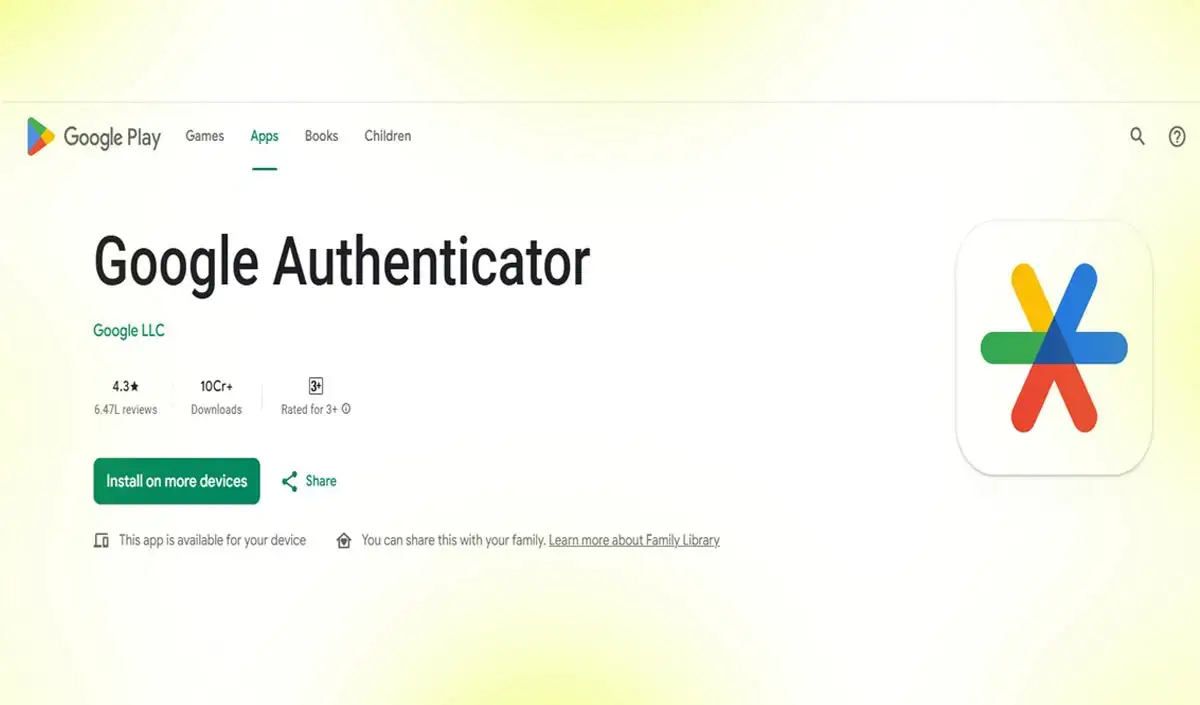
Google Authenticator is a security app developed by Google to protect online accounts. This app uses Two-Factor Authentication (2FA), which means that when logging into Gmail, an additional code is required, not just the password.
This code is automatically generated in the Google Authenticator app and changes every 30 seconds. When you try to log in to Gmail, you have to enter the code you see in this app. This code exists only on your phone, so no outsider can easily get it.
Google Authenticator security
Most people use OTP based 2-Step Verification to secure their Gmail account. While logging in, an OTP is sent to your phone number. However, sometimes hackers obtain OTP through SIM swap, phone number access or malware.
In such a situation, Google Authenticator is considered more secure because it works offline, the code is generated directly on your phone, and it does not require any network or SMS. With new code being generated every 30 seconds, it becomes extremely difficult for hackers to gain access to your account.
Process to connect Google Authenticator to Gmail
Setting up the Google Authenticator app is very easy. You can link it to your Gmail account by following the following steps.
step 1: First of all, download Google Authenticator app on your smartphone. This app is available on Google Play Store or Apple App Store.
Step 2: Now open your Google Account Settings in the browser of your computer or mobile.
Step 3: Go to the Security section and click on the option of 2-Step Verification.
Step 4: After turning on this option, scroll down and select Authenticator App.
Step 5: A QR Code will appear on your screen.
Step 6: Open the Google Authenticator app on your phone and scan this code from the Scan QR Code option given in it.
After scanning, your Gmail account will be linked to this app and you will have to enter the code shown in the app every time you log in.
Importance of backup code
When you set up Google Authenticator, Google also provides you with some backup codes. It is important to keep these codes in a safe place. If you ever lose your phone or are unable to access the Authenticator app, these backup codes will help you log in to your account.
Safety Tips
To strengthen the security of Gmail, it is important to keep some important things in mind:
– Always download the Google Authenticator app from the official app store.
– Never share the code you get from the Authenticator app with anyone.
– Keep 2-Step Verification on for all important Gmail accounts.
– Prefer Authenticator app instead of OTP.
– Keep doing security checkup of your Google account from time to time.
conclusion
In today’s time, cyber crimes are increasing rapidly and hackers keep trying to access people’s accounts by adopting new methods. In such a situation, it is not safe to rely only on the password. You can provide additional security to your Gmail account by using security tools like Google Authenticator. If you haven’t set up Google Authenticator in your Gmail account yet, activate it today. This small step can save your digital life from big danger.

Comments are closed.