
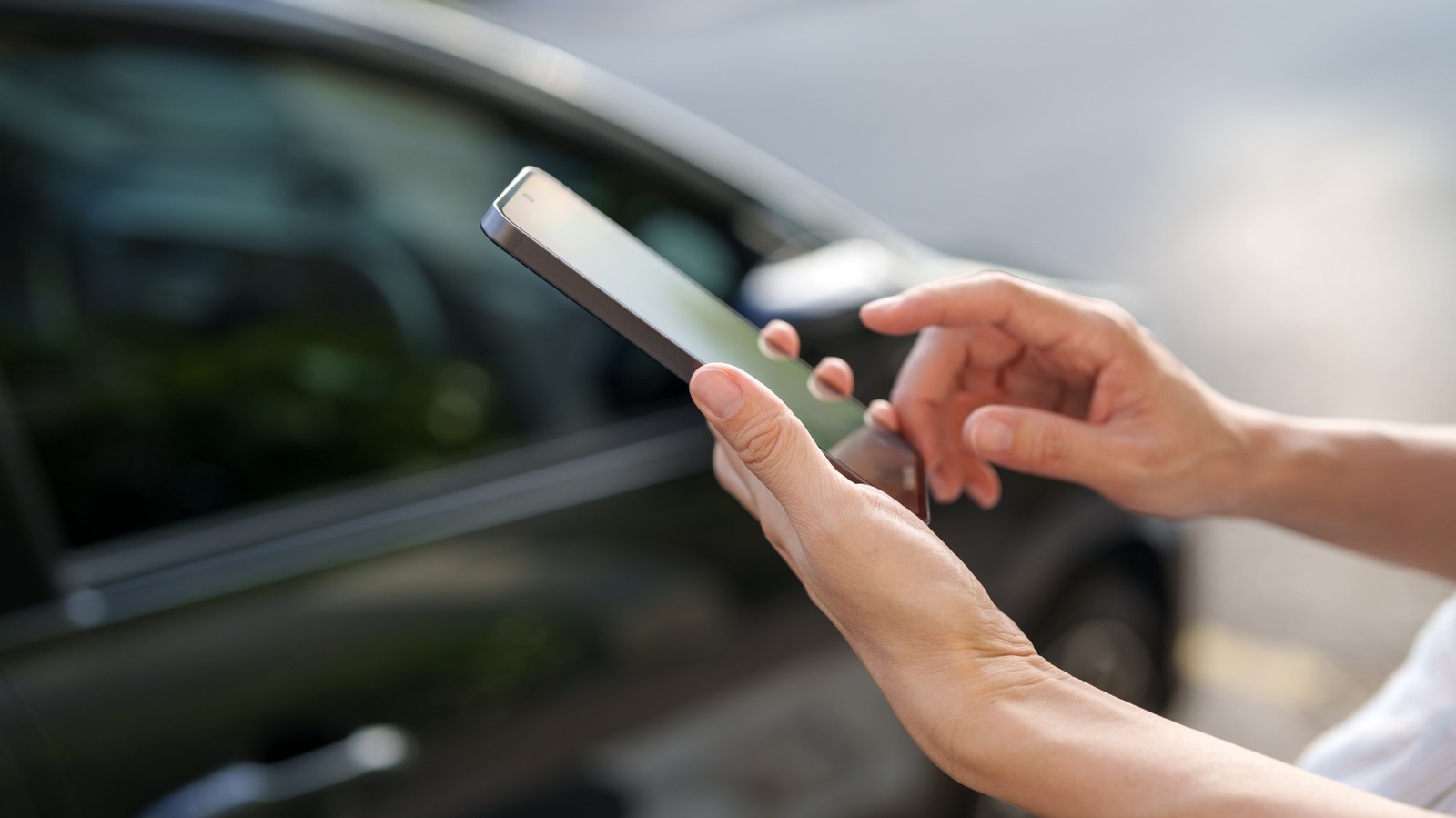

There are many helpful ways you can use your Android phone beyond just calls and communication. NFC, or Near Field Communication, is a feature that doesn’t get talked about or highlighted as much, but has wide applications, some of which you may already be using every single day. The technology is what makes Tap to Pay work, but it can do a lot more than facilitate contactless payments. For instance, it can allow your phone to lock and unlock your car.
Most modern vehicles now ship with smart keys, which eliminate the need for a physical key. Automakers have also slowly started to expand compatibility for digital keys, which allows consumers to unlock their cars using their smartphones. Both Android and iOS have supported this feature for a while now. On iOS, the Apple Wallet app is what handles your digital car key. On Android, you aren’t tied to a specific digital wallet. For instance, Samsung devices can use the Samsung Wallet app to store car keys.
For other Android devices, you can use the Google Wallet app. Before you get started, though, you need to confirm feature compatibility. Digital car keys are available for select devices running Android 12 and newer. You can view the device compatibility list over at the official Android digital car key page, which also lists supported automakers and car models.
Setting up car keys on Android is simple
Once you’ve ensured that both your phone and car allow you to create and store a digital car key, the next step involves activating the feature in your car. This can usually be done through the vehicle’s built-in display under the digital key options. Some automakers require you to request an activation link, after which you will have to go through a simple email-based setup. If you’re unsure, the best way to get started is to contact your automaker or a dealership for support.
If you receive an activation link via email or the manufacturer’s app on your phone, follow the instructions and sign in to your Google Account. Go through the terms and conditions, and select “Start pairing.” This will prompt you to place your phone close to your car’s key reader. Once NFC finishes the handshake, you should see your digital car key pop up in the Google Wallet app on your phone.
To lock or unlock your car, simply place the back of your Android phone near your car’s door handle. Similarly, you can start the vehicle by placing your phone on its key reader. Some car models support passive entry, which is a feature that further simplifies the process. If supported, your car will unlock automatically when it senses you’re near the vehicle. This way, you don’t have to take your phone out and tap on the door handle every time.
Managing your car keys on Android
Passive entry will be turned on by default for compatible car models. The feature will also automatically lock your car doors as you walk away from it. However, if you’re not comfortable leaving your vehicle’s safety to this technology, you can turn off passive entry via the Google Wallet app. Head to your digital car key, select “Details,” and disable “Passive entry.”
Google Wallet, by default, lets you lock or unlock your car’s doors via NFC even when your phone is locked. You can strengthen security by setting Google Wallet’s digital car key to only function after you’ve unlocked your phone. In the Google Wallet app, tap on your digital car key, navigate to “Details,” then “Require phone unlock,” and select the actions that will require an unlocked phone. Supported car models also allow you to remotely lock and unlock your car, trigger its alarm, or pop open your car’s trunk — all through the Google Wallet app.
Android also has failsafes for stolen or dead phones. If you lose your phone, you can use Google Find Hub to secure or erase your device — both of which will remove all payment cards and car keys from Google Wallet. In the latter situation, your phone will continue to function as a digital car key for up to a few hours, provided you haven’t turned on the screen lock requirement.

Comments are closed.