

One of the easiest ways to improve your online content performance is by creating appealing thumbnails. Regardless of whether you are uploading to YouTube, TikTok, or Instagram, the thumbnail is the first thing viewers see, and it can be the reason they choose to open the video or walk past.
The creation of custom thumbnails has never been simpler with the further development of AI tools. CapCut PC is a model that features a robust array of AI technology, allowing you to create, edit, and export images in high quality. You can easily rely on CapCut PC’s AI tools.
This tutorial describes how CapCut automatically makes it easier to create content in the form of thumbnails with its embedded AI image effects. You will also find out how artists can apply such modern tools as an AI image generator or even an AI logo generator to create professional-looking images without having to pay a designer. Now it is time to dive into the process of how you can use CapCut PC to turn a mundane idea into an impressive thumbnail in a few clicks.
Why CapCut PC Is Perfect for Thumbnail Creation
CapCut is often regarded as a utility video editor that is very fast and simple to use; nonetheless, its desktop version has some enhanced AI-powered features that have simplified the process of creating an image to the extent that it can become almost like the press of a button. To thumbnail creators, it implies that you no longer need to alternate among several apps or even complex design software. Rather, one can design everything, including characters, change lighting, and insert text, in CapCut.
That is why creators are fond of the CapCut PC as a thumbnail creator:
- AI-Powered Image Generation
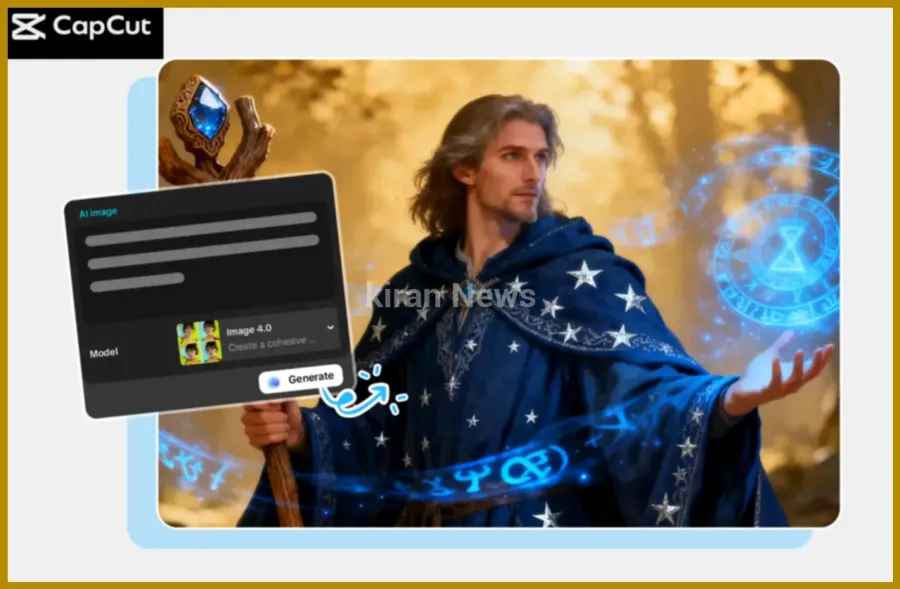
With AI generation tools, you can make your own characters, backgrounds, objects, or branded images in a couple of seconds using CapCut. You can have a realistic portrait image, a cartoon-style image, or a colorful background; CapCut AI models can provide you with a range of options simultaneously.
- Fast, Professional Editing Tools
The AI-based editing features allow you to instantly edit your photos, such as auto adjustments, color enhancement, and background editing. This implies that you do not need the knowledge of design to polish your thumbnails.
- High-Resolution Export Options
Thumbnails usually become low-quality when being stretched or uploaded. CapCut PC eliminates that issue by providing options for 4K and even 8K delivery, which guarantees that even your thumbnail will appear crystal clear on all platforms.
How AI Helps in Creating Better Thumbnails
Thumbnail design is not that of writing on an image. Contemporary creators must have expressive characters, distinctive backgrounds, clean designs, and consistent branding. This is facilitated by AI tools within CapCut in several ways:
- Create custom images using a simple text prompt.
- Align with desired brand fashion through in-built improvements.
- Change backgrounds in no time.
- Design logos, symbols, or icons with the help of built-in AI logo generators.
- Automatically adjust the composition to be professional.
This allows creators to go beyond basic edits and design thumbnails that clearly reflect their content style.
Three Operational Steps to Create Thumbnails in CapCut PC
Step 1: Open the CapCut Desktop
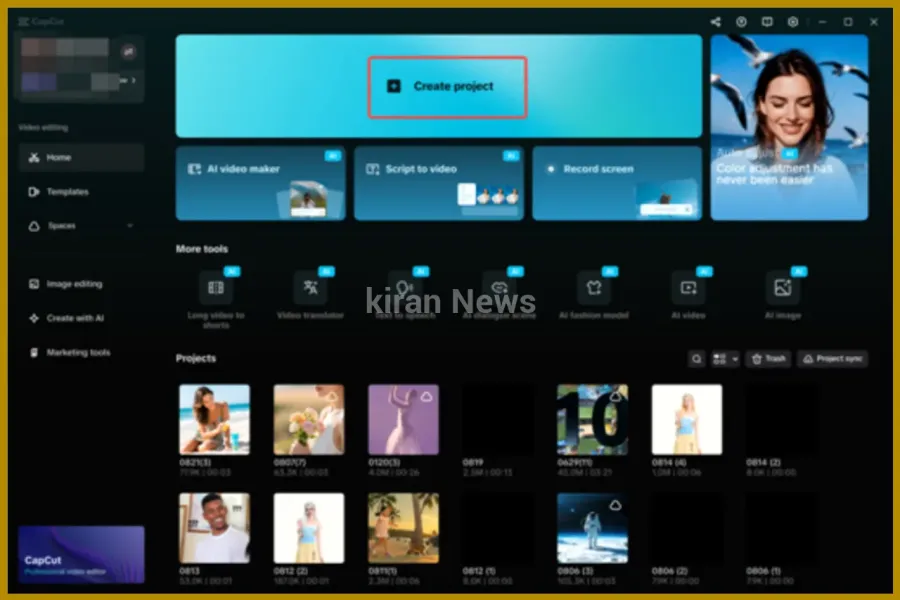
Firstly, it is necessary to download the CapCut desktop and log in to the account. Upon logging in, make a selection of the Create project option on the home screen. This will then bring you to an empty editing space in which you are going to create your thumbnail. The interface is user-friendly, and thus, you have access to your media, AI tools, and editing options within the left side panel.
Step 2: Create an AI image
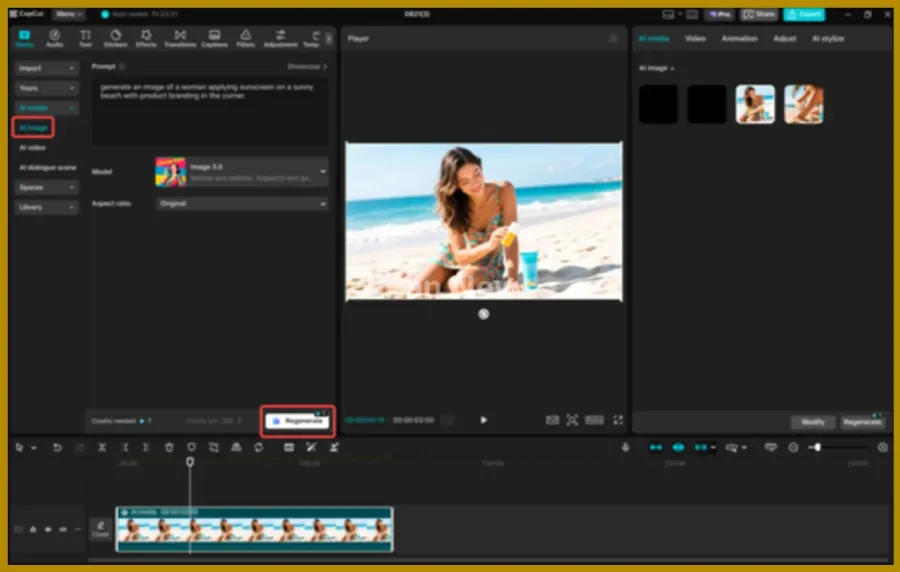
Go to Media → AI Media. Enter your prompt (up to 10 words), then choose an AI model such as Nano Banana Pro, Seedream, or Flux 1.1 Pro. You may also upload a reference image for more accuracy. It is also possible to add reference images to be more accurate. Select your aspect ratio, such as 16:9, and turn the Regenerate button on to get a variety of variations. Select the picture that you like and then edit it using CapCut AI enhancement filters.
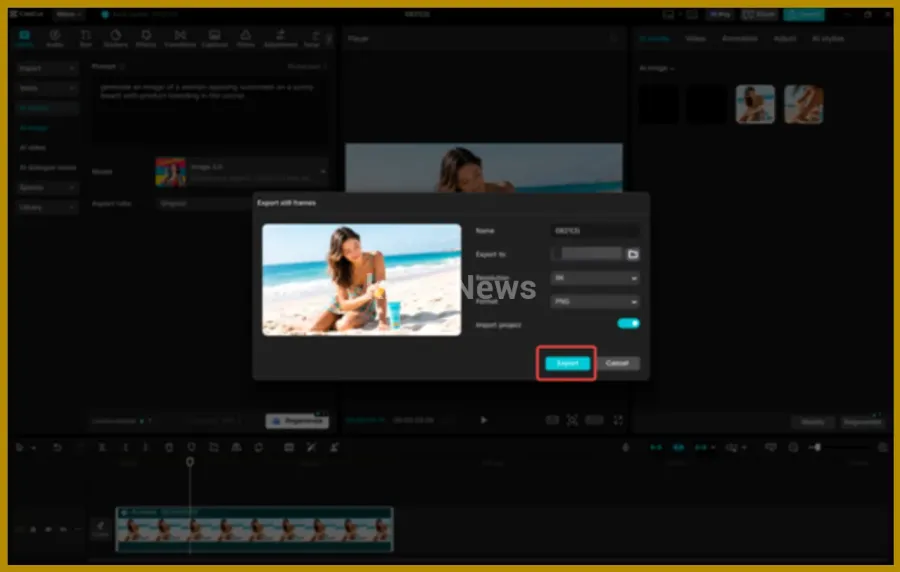
Step 3: Export and share
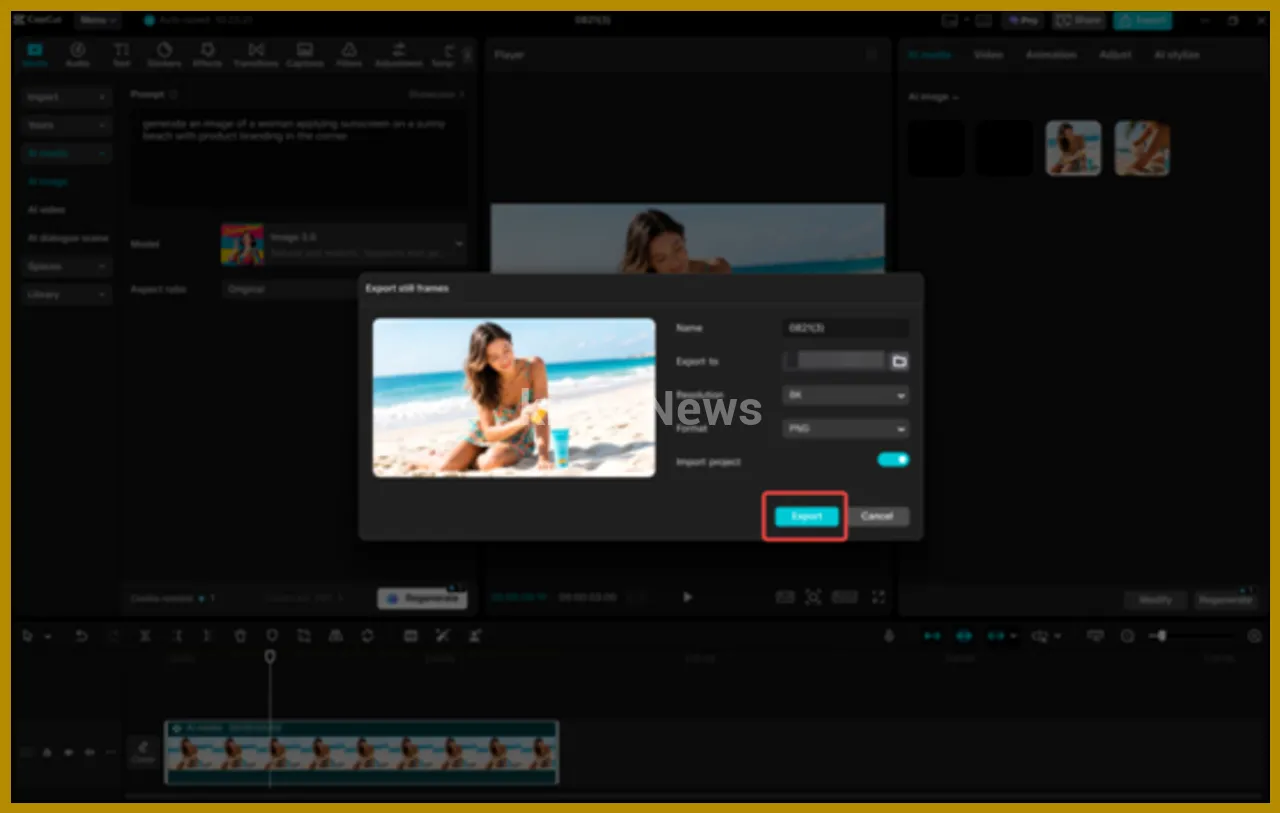
When you have your design, click the three horizontal lines at the top-right corner of the preview panel. Go to the menu by clicking on export still frames. Add a project name, select your preferred resolution, 4K or sometimes 8K, which is very high as thumbnails, and simply press the Export button. CapCut will save the thumbnail to your device, which can instantly be transferred and shared on your platforms.
Tips for Designing Better Thumbnails with AI Tools
Editing with AI tools of CapCut is easy, yet being creative assists in making them look professional. To optimize results, the following are some of the tips:
- Use Strong, Clear Visuals
The principal image needs to be able to tell you immediately what we are talking about. Computer-generated characters, facial expressions, and aggressive composition can be used to capture interest.
- Keep Text Minimal but Impactful
Use big, easy-to-read fonts. At CapCut, you can easily add text, use shadows, outlines, and presets to add some flavor to your message.
- Stay Consistent with Branding
It is possible even to make branded icons or badges with an AI logo generator and use them everywhere on thumbnails to appear professional.
- Adjust Lighting and Colors
Bright colors and good contrast make your thumbnails outstanding. This step is less difficult with auto-adjust and color enhancements of CapCut.
- Choose a Clear Focal Point
Each thumbnail has to have a central subject matter. Do not make the design overcrowded, and make your AI-generated image the hero.
Final Thoughts
Using the AI image tools offered by CapCut PC, a person does not even have to spend a lot of money on purchasing additional software or honing professional editing skills to create captivating thumbnails. Since it can make any expressive characters through an AI image generator or many brand components through an AI logo generatorit makes CapCut the all-in-one solution to everything you need, in one easy-to-use platform.
Using user-friendly instructions, which include firing up the editor, creating your AI photos, and exporting your own design, one can create colorful, high-quality, professional-looking thumbnails within a few minutes. As a YouTuber, educator, marketer, or content creator, these tools can have a great effect on the visual appeal and increase your views.

Bhupendra Singh Chundawat is a seasoned technology journalist with over 22 years of experience in the media industry. He specializes in covering the global technology landscape, with a deep focus on manufacturing trends and the geopolitical impact on tech companies. Currently serving as the Editor at Readhis insights are shaped by decades of hands-on reporting and editorial leadership in the fast-evolving world of technology.

Comments are closed.