
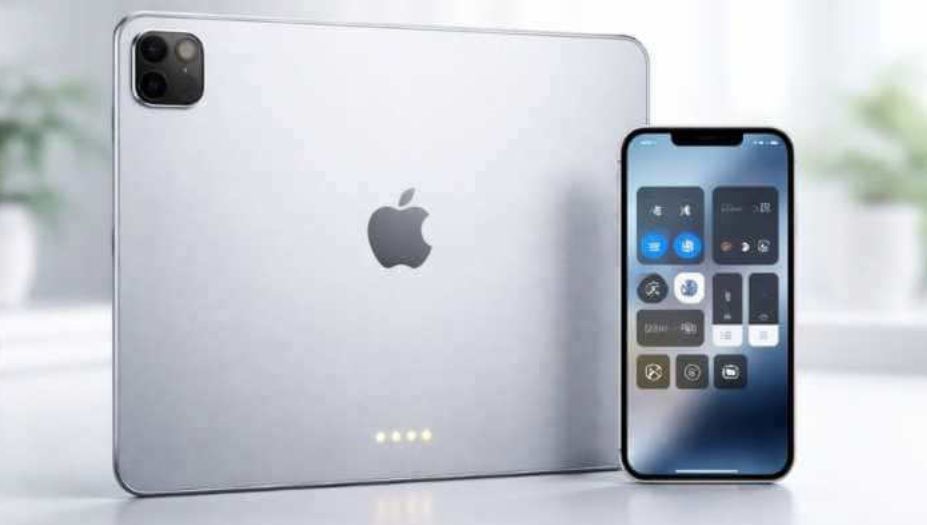

Most new **Apple iPad** models have three small dots on the back or side for the **Smart Connector**—a unique three-pin interface that first debuted with the **iPad Pro** (12.9-inch) in 2015. These magnetic pogo pins connect easily to compatible keyboard accessories, and transfer both power and data without batteries, Bluetooth pairing, charging cables, or manual setup. Simply attach the keyboard magnetically, and it’s up and running immediately.
Apple also launched the Smart Connector for the iPad Pro along with the original Smart Keyboard. This extended to **iPad Air** (3rd generation, 2019) and base **iPad** models (7th generation onwards, 2019). All current iPad Pro, iPad Air, and standard iPad models have this feature, although its location varies: on the back for the Pro and Air (for the floating Magic Keyboard design) and on the side for base iPad models (e.g., Magic Keyboard Folio). The **iPad mini** lineup is the only one that doesn’t have a Smart Connector, relying instead on a Bluetooth keyboard.
Main compatible accessories include:
– Apple’s **Magic Keyboard** (for iPad Pro and Air, with trackpad, Function Row, and pass-through USB-C charging).
– **Magic Keyboard Folio** (for base iPad).
– Third-party options like Logitech’s Combo Touch, Rugged Folio, and Slim Folio, which snap on via the Smart Connector for instant pairing and powering from the iPad.
The design is similar to competitors like Microsoft’s Surface Type Cover Pogo Pin. Smart Connector increases productivity by easily converting iPad into a laptop-like device.
(Note: The section of the article about controlling iPad from iPhone with “Control Nearby Devices” is not related to Dots. This is an accessibility feature under Settings > Accessibility > Control Nearby Devices that requires remote control via Switch or Adaptive Input to have the same Wi-Fi, iCloud sign-in, and Switch Control enabled—it’s not related to Smart Connector.)
These little dots are a practical engineering choice for accessory integration that are often overlooked but are essential to the keyboard’s ease of use.

Comments are closed.