

Windows Performance Tune-Up: A slow computer is one of the most common frustrations across homes, schools, and workplaces worldwide. Users continue to use their devices for at least five years, according to rising hardware performance, which manufacturers introduce each year. The passage of time brings decreasing performance to even the most advanced machines. Users experience slowdowns because applications require longer times to launch, while their internet browsers become unresponsive, and their systems take multiple minutes to start.
Most performance issues do not stem from one major system failure, according to common misconceptions. The system performance problems develop through time because users install excessive background applications, creating storage issues, operating with outdated drivers, and handling work tasks through unstructured processes.
Most performance problems can be solved through safe methods that people with no technical skills can use. A structured Windows performance tune-up can restore system responsiveness and extend the life of a Windows PC, which supports work and school activities and daily internet browsing.
Windows Performance Tune-Up Steps
Step 1: Reduce Startup Overload
The startup programs that Windows starts automatically create one of the most significant performance problems. Many apps install themselves into startup without asking, consuming memory and processing power before you even open a browser.
To review startup programs:
- Open Task Manager
- Navigate to the Startup tab
- Disable non-essential apps
You should disable all applications that you do not require during your first system startup, which includes messaging applications, game launching software, and update programs. You must keep essential system tools active because they are necessary for your system’s functioning.
The computer startup process benefits from reduced startup programs because it results in faster boot times and better system performance throughout the day.
Step 2: Clean Up Storage the Right Way
Most users do not understand that storage space will determine how their system performs. Windows finds it difficult to handle temporary files and updates when the drive space reaches its maximum capacity.
- Start by checking storage usage:
- Open Settings
- Navigate to Storage
Review categories such as apps, temporary files, and downloads
You should delete all unnecessary files while uninstalling software that you do not use. The built-in tool Disk Cleanup provides safe methods to delete temporary system files from your computer.
The third-party cleaner programs promise users speed improvements, yet they create severe system problems through their file removal methods. The majority of these programs delete files without any restrictions, which can result in system malfunctions.
Step 3: Update Drivers and Windows
Outdated drivers create performance problems, system crashes, and compatibility issues. The installation of new driver updates enables your hardware components to function at their best performance capabilities.
Key updates to check:
- Graphics drivers
- Network drivers
- Chipset drivers
The Microsoft Windows Update service now provides automated driver updates, but users can still obtain new drivers through their manufacturer’s driver update tools.

System updates deliver essential bug fixes along with performance enhancements. Your system will start experiencing stability issues when you choose to skip updates.
Step 4: Manage Background Processes
Background applications use both memory and CPU power at all times, which creates performance issues for the system. Performance problems emerge when multitasking becomes difficult because of increased system resource use.
Task Manager enables users to locate processes that consume excessive background resources. You should terminate or remove any software that operates in the background without providing any useful features.
Common culprits include:
- Auto-updating utilities
- Browser extensions
- Redundant cloud sync tools
The process of reducing background load creates more resources, which become available for active tasks.
Step 5: Check for Malware and Unwanted Software
Malware and unwanted software create severe performance problems. Background components of legitimate applications create system slowdowns.
Run a full system scan using built-in Windows Security or a trusted antivirus tool. Remove suspicious programs promptly.
Users should avoid software installation from sources that do not have verification. Unwanted background services, which decrease system performance, come packaged with many “free” tools.
Step 6: Adjust Visual Effects Carefully
Windows visual effects create better visual appearances, which require system resource usage. Users with older hardware will experience better performance when they decrease visual effects.
The user needs to navigate through these steps to modify visual settings:
- The user needs to access the System settings
- The user needs to go to the Advanced System Settings
- The user needs to select Performance options
Select settings that give priority to performance instead of visual appearance. The user can restore all changes to their previous state without any risk.
Step 7: Optimise Storage Drives
The disk fragmentation process creates access delays for file retrieval on traditional hard drive systems. The performance of systems improves when users run the built-in defragmentation tool at regular intervals.
Defragmentation should not occur on solid-state drives (SSDs), yet their performance maintenance requires automatic operation of built-in optimization tools.
Free space requirements of 15 to 20 percent enable both hard disk drives and solid-state drives to function at their best performance level.
Step 8: Monitor Memory Usage
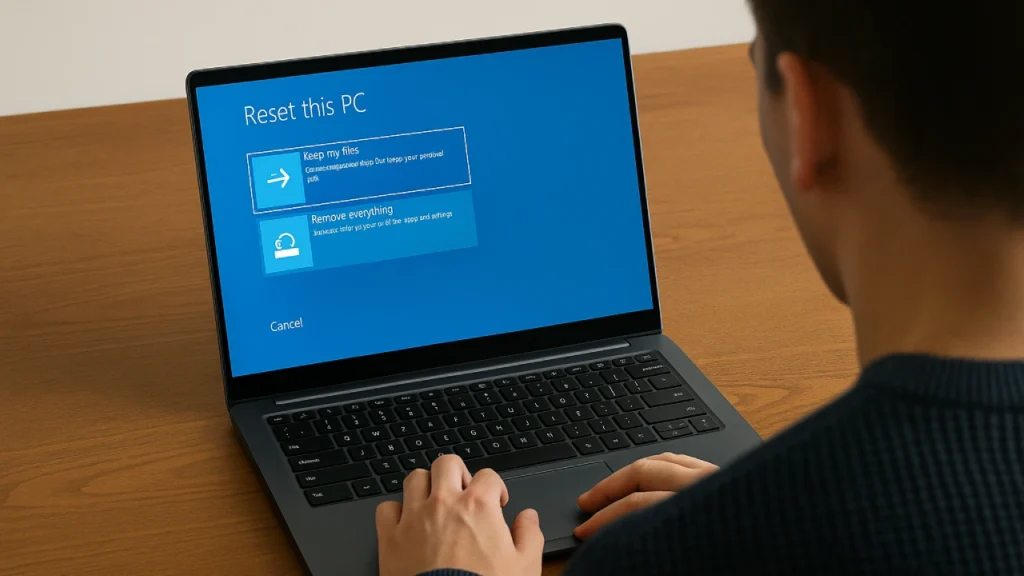
Excessive RAM usage results in performance issues, which become worse during simultaneous operation of multiple applications and web browser tabs. Users should control their memory usage even when memory upgrades are not feasible.
Users should terminate all unused applications while decreasing their usage of resource-intensive browser extensions. Users should select less demanding software options that replace their current resource-heavy applications.
The most effective solution for memory management problems occurs through RAM upgrades when users observe their memory usage reaching full capacity.
Step 9: Avoid Risky “Performance Tweaks”
The internet offers multiple techniques that claim to double system performance through registry changes and system modifications. The majority of these proposals present both outdated information and security hazards.
Avoid:
- Registry cleaners
- Unverified optimisation scripts
- Disabling critical system services
Modern Windows systems do not require these changes because they create system instability while providing no actual benefits.
The proper method to enhance performance requires system maintenance instead of adopting extreme system changes.
Step 10: Establish Regular Maintenance Habits
The best way to maintain optimal performance for Windows PCs requires regular maintenance activities. Monthly checks can prevent gradual slowdowns.
Recommended routine:
- Review startup programs
- Clear temporary files
- Check for updates
- Run security scans
The required tasks need only a few minutes to complete, but they produce major performance enhancements that last over time.
Global Considerations: Hardware Longevity Matters
Users in various parts of the world choose to retain their desktop computers because of financial limitations and difficulties in obtaining new devices. Maintaining a computer system properly extends its lifespan by multiple years, which results in reduced electronic waste disposal and financial savings.
For schools, small businesses, and households worldwide, performance tuning is not just about convenience; it’s about sustainability.

When to Consider Hardware Upgrades
Maintenance work sometimes fails to restore system performance. The procedure requires testing to determine which components need improvement through specific upgrades.
Common upgrades include:
Replacing HDDs with SSDs
Adding RAM
Cleaning internal dust buildup
These changes offer significant performance enhancements that businesses can implement at minimal expense.
Conclusion: Maintenance Over Magic
Users should avoid taking extreme measures when their Windows PC experiences sluggishness. Users can resolve performance problems through their existing system startup processes, storage management, driver updates, and background process control.
Users achieve system performance restoration through safe optimization techniques while bypassing methods that could endanger their system integrity.
In 2026, maintaining performance requires caregivers to execute standard procedures instead of using hidden methods. A PC that receives proper maintenance will remain functional and dependable for extended periods beyond its expected lifespan.

Comments are closed.