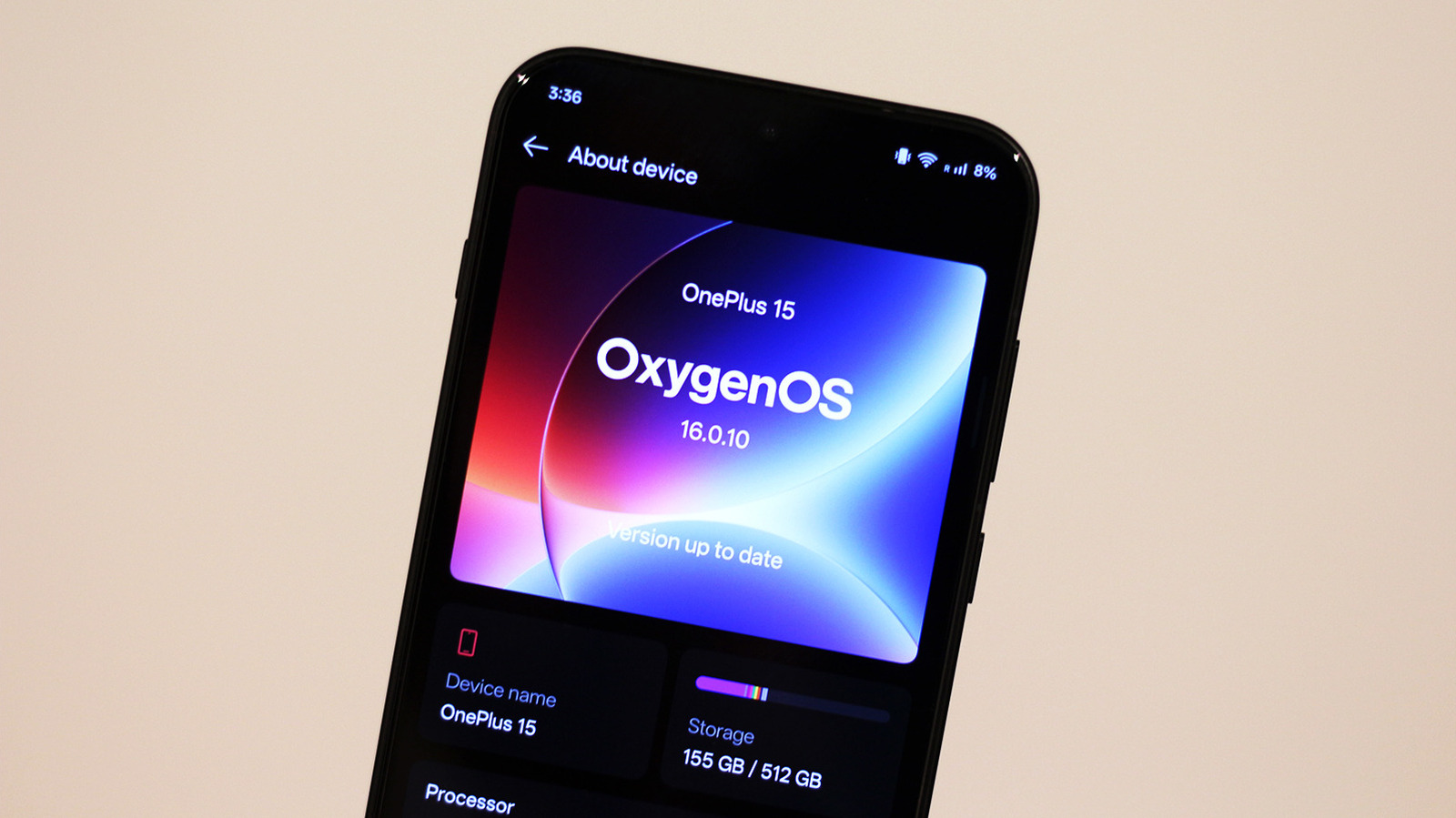
Although OnePlus is largely known in the smartphone space for its value offerings that undercut the competition by a considerable margin, there are a couple of other reasons why the brand has built up such a loyal user base over the years — extremely fast charging thanks to technologies like SuperVOOC being one of them. That said, OnePlus’ software experience is talked about just as much as the hardware. The OnePlus One kicked things off strongly with CyanogenMod — an Android-based custom ROM that was very popular among enthusiasts. It offered customizability features that were difficult for other smartphone manufacturers to match. OnePlus slowly transitioned to its own flavor of Android with subsequent releases — OxygenOS. Although it shared a lot of similarities with stock Android, OxygenOS has always been packed to the brim with useful features.
Over the years, OxygenOS lost its resemblance to stock Android as OnePlus began mixing in elements borrowed from Oppo’s ColorOS. As of 2026, the latest version of OnePlus’ Android software, OxygenOS 16, is virtually indistinguishable from ColorOS 16 – but that’s not a bad thing. OxygenOS is as feature-rich as ever and has maintained its reputation for being one of the snappiest ways to experience Android on a smartphone. Beyond the known goodies that OxygenOS advertises, like the highly customizable lock screen and always-on display or the comprehensive suite of AI tools, here are five features within OxygenOS you should be using that aren’t as well known.
Quick Launch
Typically, the quickest way to get into an app you frequently use on your phone is to pin it to your home screen or your dock. On many Android phones, you can use a lock screen shortcut or double-press your power button to quickly launch the camera. Well, if you’ve exhausted all app spaces on your dock and still want a quicker way to launch certain services, there’s a handy feature that OxygenOS offers.
Buried deep inside the fingerprint options is Quick Launch. You can also find it by navigating to Settings > Accessibility & convenience > Quick Launch. The feature lets you pin up to five apps around your fingerprint scanner. The menu pops open when you hold down your thumb or finger for a brief moment after the screen is unlocked. It doesn’t get in the way if you’re trying to unlock your phone — simply let go of the fingerprint scanner as you normally would.
You can pin supported apps here. The Quick Launch space is incredibly useful for apps that you use frequently but don’t want to give a permanent space on your home screen. Think banking apps, authenticators, or food delivery services. Quick Launch also lets you add app functions. For instance, you can pick a specific chat from Instagram or WhatsApp to launch from the shortcut or make it so that when you open Google Wallet, a specific payment card is selected.
Floating windows
Multitasking on Android has always been a step ahead of the iPhone, and one of the coolest new features Google launched with Android 17 is App Bubbles. It’s essentially Facebook Messenger’s chat heads but for your apps, allowing you to quickly switch between them without pausing what you were already doing. OxygenOS handles this a bit differently, though. Instead of app bubbles, you get floating windows that can be resized and moved around.
Floating windows on OxygenOS might be a more powerful way to multitask, though, since they actually let you use a second app on the screen without losing sight of whatever you’re already doing in the primary app. While the split-screen mode also lets you do that, a floating window makes sure you’re not cutting half of the app’s content.
You can turn an app into a floating window in one of two ways. First, head to the recent apps screen by swiping up from the bottom and holding for a moment. Tap the three-dot menu icon next to your app of choice and select “Floating window.” Alternatively, while you’re in an app, you can swipe up from the bottom and go beyond the halfway point of the screen to turn it into a floating window or enter split-screen mode. You can change the size of the floating window using the handles at the bottom. Both the primary app and the one in the floating window can be interacted with at the same time.
Gaming tools
OnePlus phones have always been known for how powerful they are. The flagship series packs in the latest from Snapdragon, an impressive amount of RAM, fast storage, and a highly responsive screen. They’re a joy to use for day-to-day apps, but this formula makes them especially sought after for gaming. Out of the box, most OnePlus phones shouldn’t sweat running even the most demanding titles like “Genshin Impact” or “GRID Autosport.” However, if you’re willing to dive a bit deeper into OxygenOS, you can fine-tune your gaming experience.
Game Assistant comes preinstalled on newer versions of OxygenOS, and it’s more than just a quick way to manage your games. If you tap on “Performance settings” at the bottom, you can configure certain aspects of how the selected game runs on your phone. The Balanced mode is set by default for many games, but you can switch to the Pro Gamer mode for maximum performance.
Under the “Controls” tab, you can tweak the tap and swipe sensitivity alongside touch precision. If your phone features a display with a high touch sampling rate, you can take advantage of that by selecting the “Ultra touch” option. For compatible games, you can adjust your phone’s gyroscope sensitivity. There are a couple of GPU settings you can force for a game using Game Assistant too, like MSAA or anisotropic filtering. While inside a game, you can swipe from the left to access a suite of tools like screen recording or network optimization.
Screen-off gestures
If you’ve been a long-term OnePlus user, this feature might not surprise you, but for newer converts, screen-off gestures can feel magical. This has been a staple of the OnePlus experience since the beginning. You may already be familiar with the tap-to-wake gesture on most Android phones. Well, screen-off gestures on OxygenOS offer an upgrade. You can, as usual, tap once on the screen when your phone is locked to trigger the ambient display. You can then double-tap to wake the device and access the lock screen itself.
The addition here is that you can draw certain shapes on the screen when the device is locked to perform specific actions. For instance, you can draw a circle to quickly launch the camera or a “V” to toggle the flashlight. If there’s any music playing, you can skip a track by tracing out a greater-than symbol, go to the previous track by drawing a less-than symbol, or play or pause the song by swiping down with two fingers.
Navigate to Settings > Accessibility & convenience > Gestures & motions > Screen-off gestures. Here, you can also enable actions for an inverted “V” gesture in addition to the “M” or “W” shapes. You can pick what each gesture does — it can either call a selected contact or open a specific app. Screen-off gestures work when you have the always-on display enabled as well. OxygenOS also includes pocket mistouch prevention to help keep these gestures from being triggered accidentally.
Content Portal and other useful OxygenOS tools
There are a couple of other OxygenOS features that we wanted to shine some light on here. On supported OxygenOS 16 devices, Content Portal is a relatively new addition that makes copying and pasting content across different apps much easier. As opposed to holding down on an image, saving it, and then picking it from the media picker in another app, you can simply drag images and text and drop them into a different app using the Content Portal space that appears at the bottom. If you don’t have the feature enabled, navigate to Settings > Accessibility & convenience > Content Portal to turn it on. You can customize which apps show up when you trigger Content Portal and even disable the feature for certain apps.
While you’re in the accessibility settings, you might also want to try out Smart Sidebar. If you’ve ever used Edge panels on a Samsung phone, you’ll feel right at home with how it works. You can pin apps or quick actions in the Smart Sidebar for faster access. If you enable File Dock, you can drag and keep items here that you may need later to share in another app — it’s like Content Portal but for your files. You can customize the size, location, and transparency of the floating bar for the Smart Sidebar, too. If you want to discover even more useful tidbits, like a speaker cleaner, launch the Phone Manager app and navigate to the Utilities tab.