
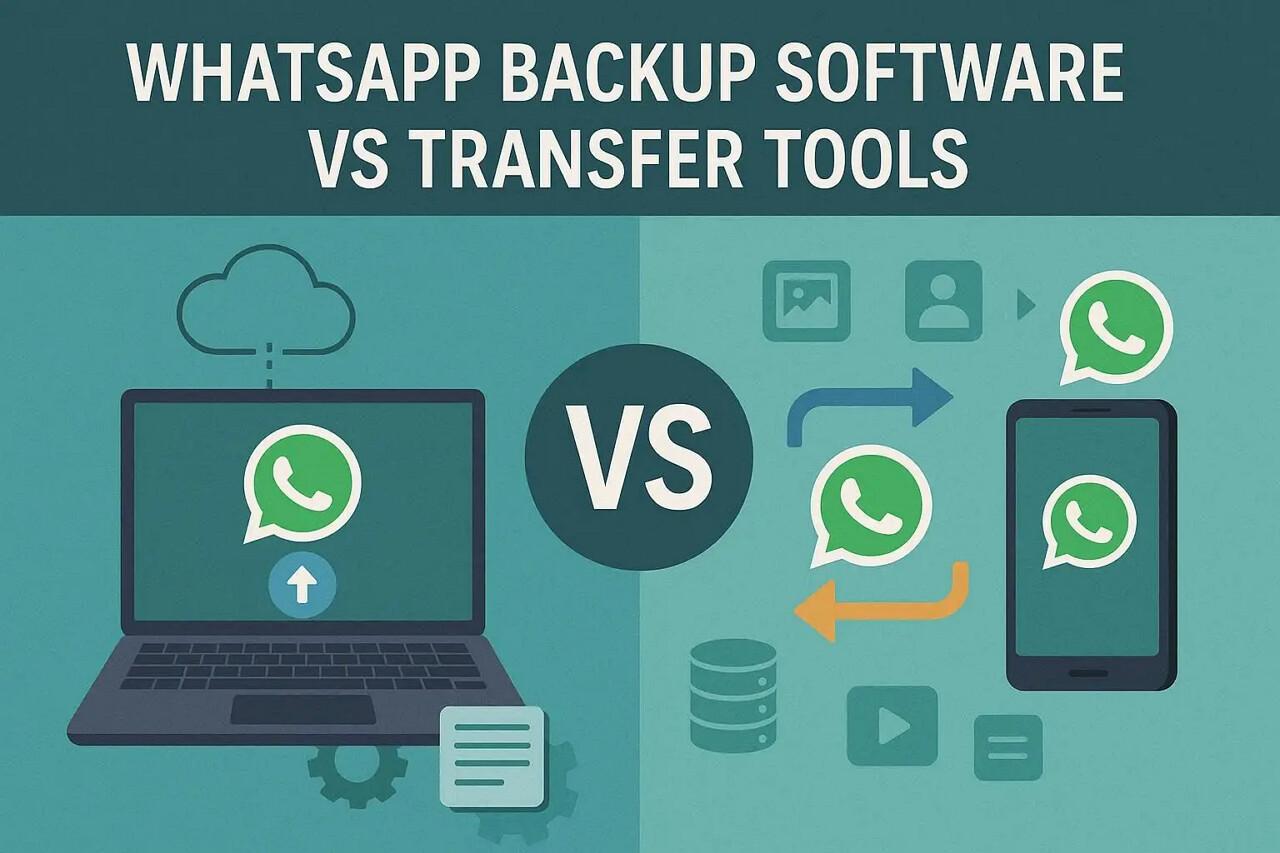
WhatsApp Backup Software vs Transfer Tools: How to Move WhatsApp When You Don’t Want Surprises

Many people search for ways to move WhatsApp without losing chats or media. When switching phones, unexpected issues appear because backups are incomplete or outdated. A backup works well only if it’s verified, but many users skip that step. If the backup fails, messages can disappear or be restored incorrectly on the new device.
Hence, this guide explains safe ways to move WhatsApp data based on needs. It also shows when guided options like Dr.Fone – WhatsApp transfer are helpful here. So, matching your situation with the right method makes WhatsApp migration calmer overall.
Part 1: What Is the Difference Between Backup and Transfer?
Backup means creating an extra copy of WhatsApp data for protection and future recovery. Whereas, transfer means moving WhatsApp data from one phone to another for continued daily use. Backup keeps the original data untouched, while transfer prepares data for a new space. For that, many users rely on WhatsApp backup software to move data between devices. Anyhow, the table below compares their purpose and results in simple terms only:
| Aspect | WhatsApp Backup | WhatsApp Transfer |
| Main Purpose | Keeps an extra copy for safety and recovery | Moves chats and data to a new phone |
| Data After Processing | Original data stays, plus a backup copy | The new phone becomes the main active copy |
| Usage Pattern | Often runs regularly on a schedule | Usually done one time during a phone change |
| Risk Protection | Helps restore data after loss or deletion | Focuses on smooth device switching |
| Best Use Case | Protecting chats from accidents | Setting up WhatsApp on a new device |
Part 2: 5 Essential Tips for Moving WhatsApp to a New Phone
Many users change phones without planning, then worry about losing chats and shared media. Moving WhatsApp needs clear steps because backups and transfers work differently worldwide. Some methods copy data for safety, while others move everything to another device. Yet, these tips explain how to prepare, move, and check WhatsApp before deleting old phones:
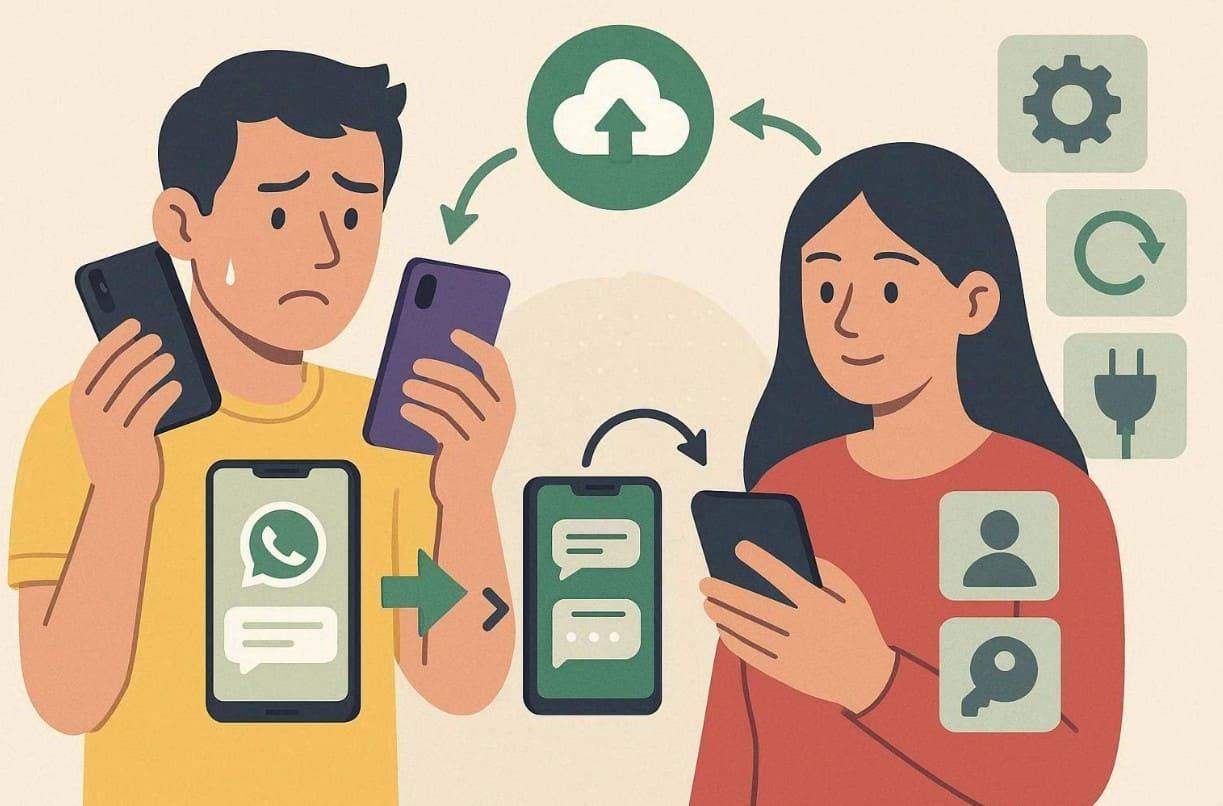
- Platform Rules: Android and iPhone use different systems, so cloud backups cannot cross platforms. Therefore, use official or third-party WhatsApp transfer tools when switching systems to avoid failed restorations.
- App Updates: Update WhatsApp on both phones to prevent errors during transfer or restore. Older app versions may stop transfers midway or skip newer messages during moves.
- Power Connection: Keep both phones charged and connected to stable Wi-Fi throughout the process. Low battery or weak internet causes freezes or incomplete WhatsApp moves issues.
- Account Match: Sign in using the same phone number and cloud account as before. Wrong accounts make backups invisible, and transfers appear empty or broken suddenly later.
Part 3: What “Recover Deleted WhatsApp Messages Without Backup” Typically Implies
Recovering deleted messages without a backup means searching for leftover data fragments. The platform removes chats from its main database, leaving no simple undo option. Without backups, recovery depends on hidden files, caches, or traces still existing. These traces are fragile and disappear as phones continue normal daily use. Success depends on whether storage space was overwritten by new apps or messages.
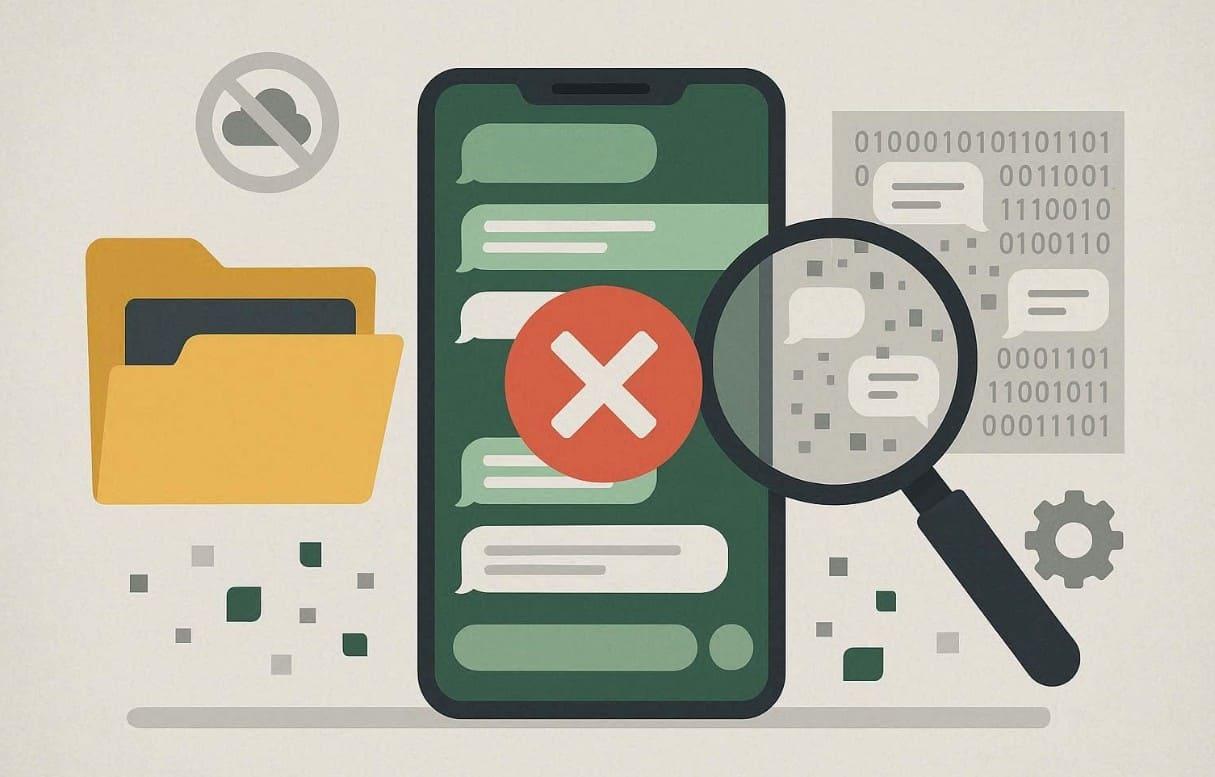
Android devices sometimes keep local databases, improving chances if action happens. Delays reduce recovery odds because systems reuse free space almost immediately afterwards. People researching how to transfer phone number to new phone face recovery confusion. Thus, quick action, proper tools, and early verification always make recovery or migration safer.
Part 4: Choosing the Right Path for a New Number or New Device
Choosing the right path depends on whether you’re changing your device, your number, or both. Each scenario affects how your chats and account move across phones. Therefore, acting carefully ensures your data remains intact throughout the transition. A wrong step may cause data loss, like trying to recover deleted WhatsApp messages without backup. Below is a table to help understand the correct path and keep messages connected across changes:
| Scenario | Recommended Action | Result |
| Same Number, New Device | Install WhatsApp, verify with the same number, then restore or transfer chats. | Keeps your groups, chats, and identity intact while switching hardware. |
| New Number, Same Device | Use Change Number in Settings > Account > Change Number. | Moves chats and profile to the new number on the same phone. |
| New Number, New Device | First, use Change Number on the old phone, then perform the transfer. However, no need for this if you will use Dr.Fone – WhatsApp Transfer. | Links chats to the new number before migration and avoids transfer errors. |
Part 5: Dr.Fone WhatsApp Transfer + Android Data Recovery as a Safer Plan B
Many users realize too late that backups fail or transfers miss their latest chats. Instead of depending only on generic WhatsApp backup softwareusing guided tools ensures safety. When that happens, Dr.Fone – WhatsApp Transfer offers a safer Plan B for both Android and iPhone users. It provides complete device compatibility with Android 16 and iOS 26 for migration. Moreover, ultra-fast transfers work on iPhone 17 and Samsung Galaxy S25 series.
The tool migrates all WhatsApp data, including multimedia and even emojis. Dr.Fone also lets you transfer only selected chats or attachments for better storage use. Alongside, its data merging keeps old and new messages together during transfer. For recovery situations, Dr.Fone – Data Recovery (Android) delivers the highest success rate. You can instantly retrieve WhatsApp data, including View Once media. The tool supports over 6,000 Android models for broad coverage.
Key Features
- Business Support: Transfers WhatsApp Business chats and messages without losing any data.
- Call Transfer: Detects and transfers call logs selectively across connected mobile devices.
- Partial Restore: Restores chosen chats instead of overwriting the entire WhatsApp database.
Guide to Transfer WhatsApp Between Phones Using Dr.Fone – WhatsApp Transfer
Take guidance from the tutorial below to move WhatsApp data via this dedicated WhatsApp transfer or backup program:
Step 1. Access the WhatsApp Transfer Tool
Go to the “Toolbox” tab in Dr.Fone and select the “WhatsApp Transfer” feature. Then, click “Transfer WhatsApp Messages” and connect both old and new phones to your computer.
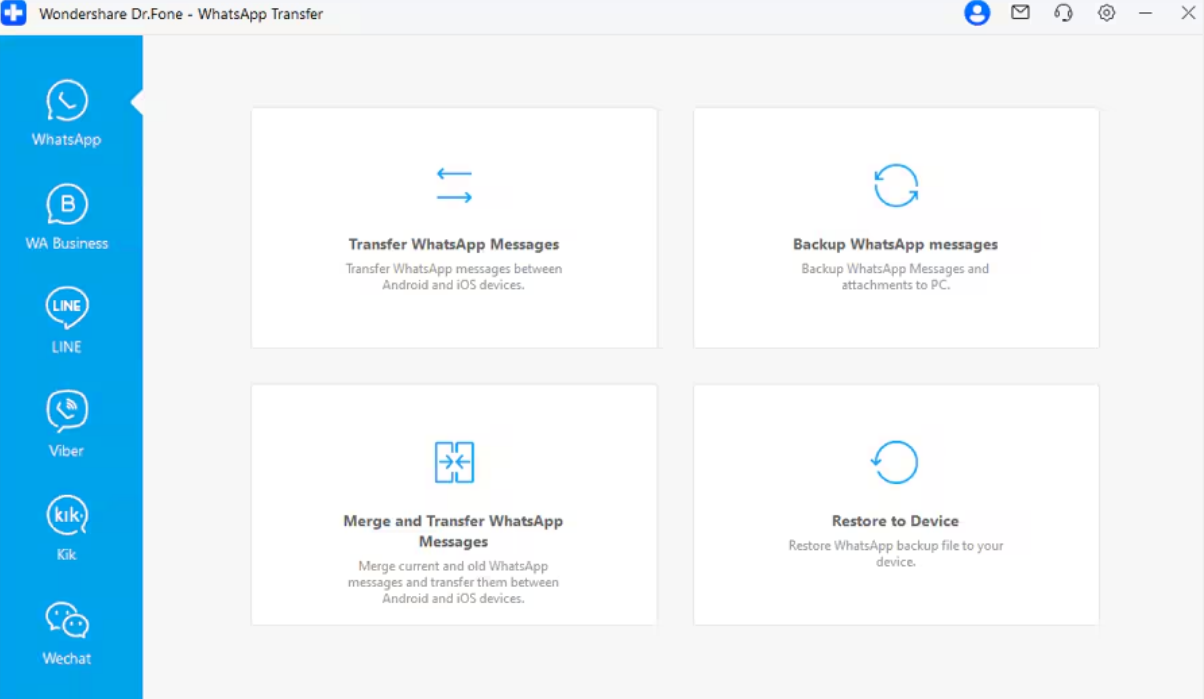
Step 2. Select the Required WhatsApp Content
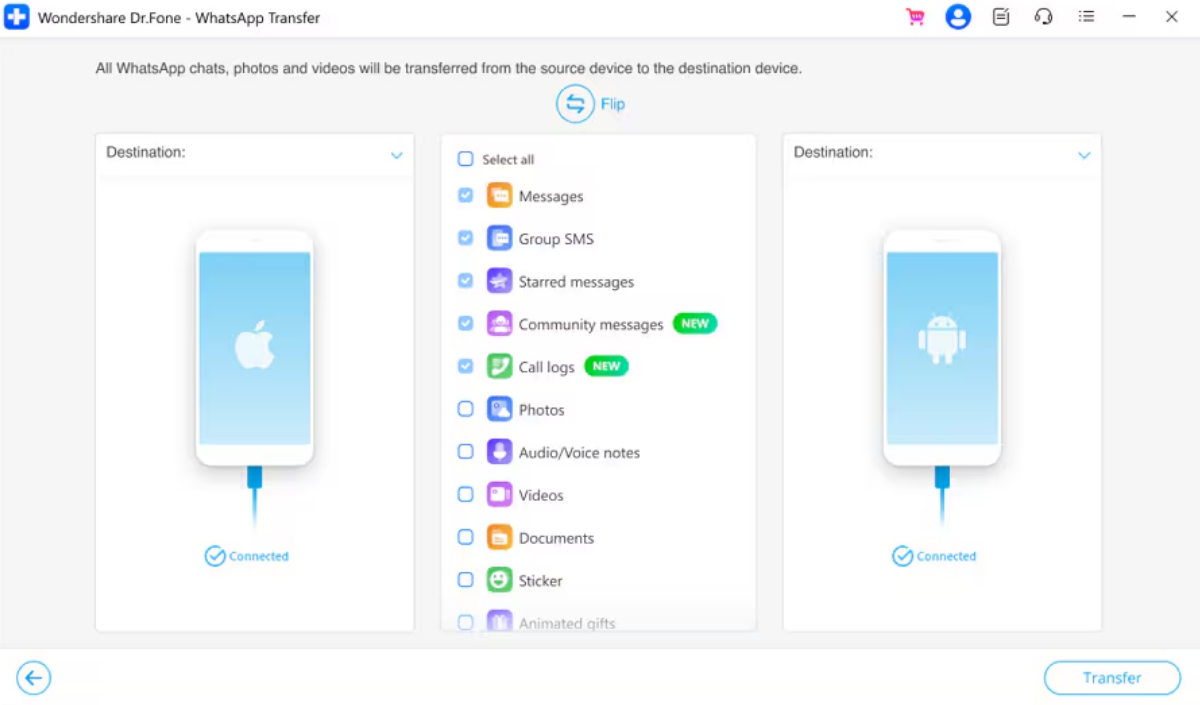
After connecting the devices, pick the WhatsApp items you want to transfer and click “Transfer.” You can also flip the phone directions if they are detected incorrectly by the tool.
Step 3. Complete WhatsApp Migration
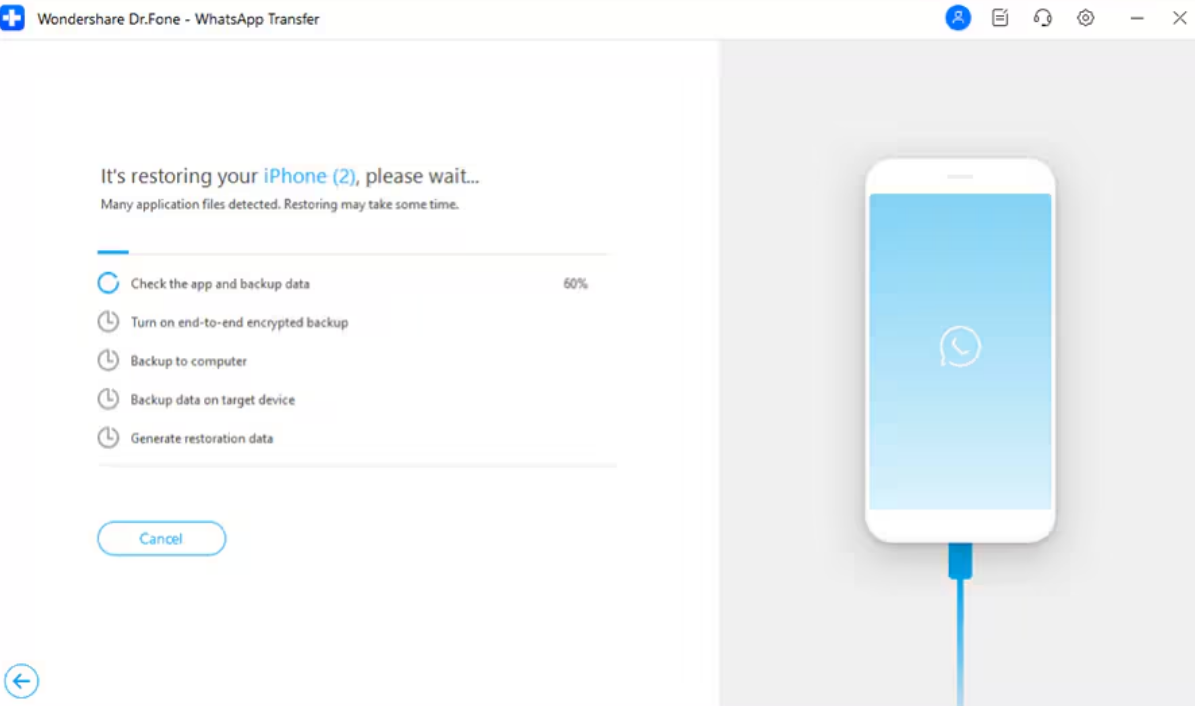
The software will start moving your chosen WhatsApp data, like messages, stickers, call log, videos, and other selected data, to the new device.
Conclusion
To sum up, moving WhatsApp requires understanding backups, transfers, and possible recovery challenges. Many problems occur when users skip verification or use mismatched platforms during transfer. So, planning each stage avoids missing chats and broken restores afterward. To keep everything predictable, always ensure backups work before switching any phone. If something still feels uncertain, use Dr.Fone – WhatsApp Transfer to handle migration across all devices.

Comments are closed.