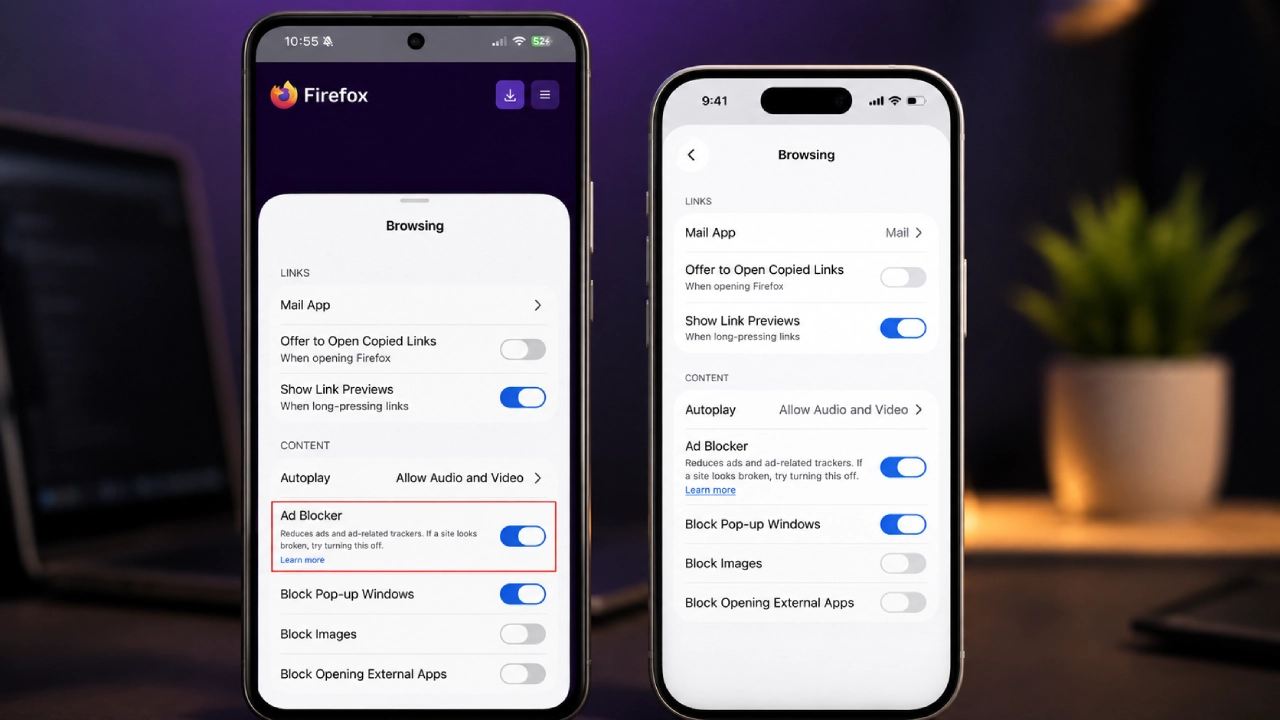
Mozilla wants iPhone and iPad browsing to feel a bit less messy, so it’s adding a native ad blocker for Firefox on iOS. The idea is that users get a built-in way to cut down advertisements, ad related trackers and those annoying promotional formats, without needing some separate tool.
The feature is currently experimental, and it’s being introduced little by little for Firefox for iOS users. Mozilla is using what they call a progressive rollout, so it might not show up immediately for everybody. Unlike a standalone third-party extension, the ad blocker is integrated right into Firefox. Still, it is switched off by default, so people can choose whether they want to turn it on.
Firefox’s ad blocker: how it really works
Mozilla says this feature basically runs at the network level, and it leans on a filter list that is based on EasyList, so Firefox can spot and block a lot of ad-related resources before they even load. In other words, it’s kind of like blocking from the doorway, not after the room is already full.
The feature is able to go after ads that are coming from third-party advertising networks and exchanges, plus those ad trackers that follow you around. It can also stop annoying stuff like pop ups, and overlays, the flashy things that interrupt what you where doing. Blocking ad resources ahead of time may help with visual clutter and also reduce pointless network traffic.
Still, Mozilla does not promise that every single advertisement will be gone, no matter what. Some websites use different advertising technologies, and a portion of ads simply might not match the current filtering system, so they slip through.
Search Ads Will Still Appear
One major snag is that Firefox’s built-in ad blocker does not stop ads shown on search engine results pages. So ads on Google, Bing, or DuckDuckGo can remain visible even when you turn the feature on. Also, sponsored content on Firefox’s own Home page or the New Tab page is not affected either. Mozilla gives separate controls for that kind of content instead. So you should treat the feature like a strong reduction tool, not a “remove everything everywhere” button for the whole internet.
How to enable the ad blocker
To enable the ad blocker, first check if your account or version actually has the feature available. If you do, you can turn it on inside Firefox. For Firefox on iOS, go to Settings, then Browsing, then Content, then Ad Blocker, and flip the switch to ON. Mozilla also gives you a faster option once you’re already on a page. While you’re browsing, open the Site menu on the webpage, then tap Ad Blocker and toggle it on or off right there.

A more privacy-minded browsing experience
This newer ad blocker can be really helpful if you often run into intrusive ads, pop-ups, and screen overlays when you’re using your phone. With those things reduced, pages can feel simpler to read and less distracting, especially on smaller smartphone displays.
And blocking ad-related trackers adds a privacy perk too, not just the obvious part of removing ads.
Conclusion
Mozilla’s native ad blocker gives Firefox for iOS users a more straightforward way to cut down unwanted advertisements, tracking scripts, pop-ups, and those annoying overlays. The EasyList-based, network-level filtering method can block a lot of ad resources before they even load, but it does not wipe out every type of advertising. Ads from search engines, plus sponsored content on Firefox’s Home and New Tab pages, remain mostly untouched.