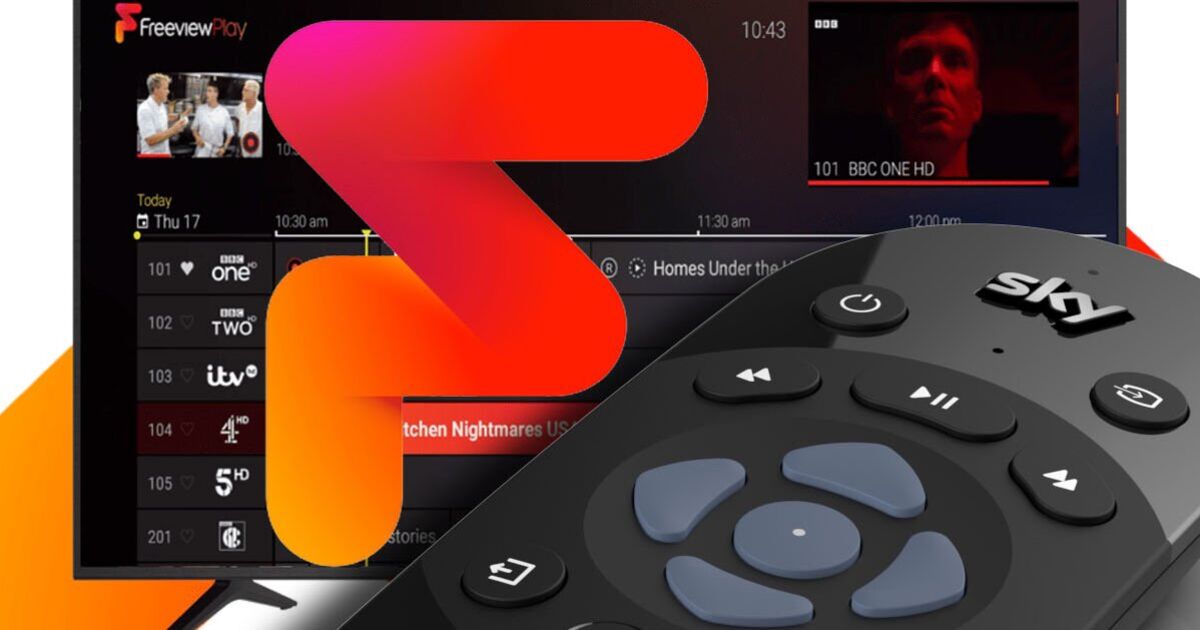
Freeview is shaking things up with an update that Sky can’t currently match. The hugely popular free-to-view service has just announced major changes to its TV planner, including two new channels that are “coming soon”. The boost means users will get access to services called Your TV (channel 71) and Your TV extra (channel 75). EE’s TV platform is also getting these bonus channels, but a quick search on Sky’s planner shows no sign of the upgrade.
That might change in the future, but for now, it appears Freeview users are getting something its premium rival can’t match.
At the moment, it’s unclear what programmes will be available on Your TV and Your TV extra, with the current telly guide not yet displaying the upcoming lineup of shows.
That should change within the next few weeks once the service officially launches. As soon as we get more information, we will update this article.
Those who think they’ve already seen Your TV wouldn’t be wrong. A service with that same name first launched back in 2015 on Freeview, YouView, Freesat and Sky. It featured real-life shows including Baking Good, Baking Bad, Derek Acorah’s Ghost Towns and Rescue: Special Ops. The channel closed in 2019.
Along with those two new channels, Freeview has also confirmed that three current services are getting a rename.
The update includes That’s Oldies MCR (ch 79) which now becomes Your TV MCR.
That’s 20th Century MCR (ch86) switches to Your TV Extra MCR and That’s Classics (ch93) becomes Your Music.
“Some broadcasters are making changes to their channels,” Freeview confirmed.
“Channels are constantly evolving on Freeview with individual channels making the decision to move, add or remove channels. Freeview continues to ensure that audiences can enjoy a rich and varied content.”
Homes that have not yet seen the channel changes must now retune their screens.
“You will need to retune to update your TV and keep your channels and TV Guide up to date,” Freeview added.
HERE’S HOW TO RETUNE YOUR TV
• Press menu on your box or TV remote control
• Select ‘set-up’, ‘installation’, ‘update’ or a similar option. If you’re asked for a password, the default code is ‘1234’ or ‘0000’.
• Select ‘first-time installation’ (sometimes called ‘factory reset’, ‘full retune’ or ‘default settings’).
• Press ‘OK’ if your equipment asks if it’s OK to delete existing channels and then your retune should start automatically. If you’re prompted to, save the channels that are found.