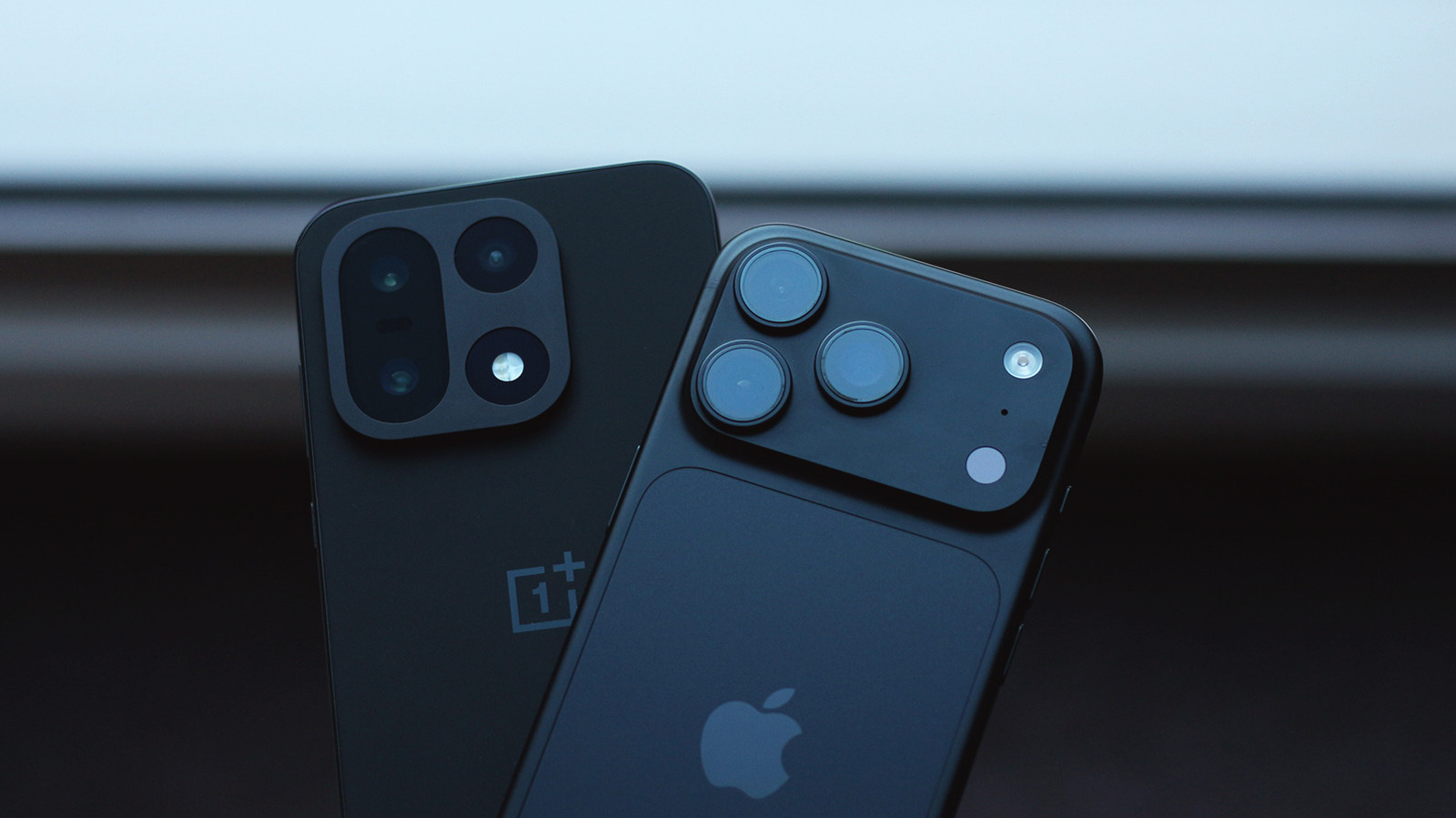
A big reason why people keep coming back to the iPhone or the Mac is how seamlessly Apple’s products work together. Some of Apple’s Continuity features include Handoff, Sidecar, and iPhone Mirroring — but AirDrop is arguably one of the most useful of the bunch. For years, AirDrop access was limited to Apple’s ecosystem, but then Google broke that barrier down by introducing AirDrop compatibility to select Pixel devices in 2025.
The feature has since made its way to a few Samsung, OnePlus, and Oppo smartphones. Google says it’s working on expanding the feature to more Android phones. You don’t need to download a third-party app on your Android phone for this to work. Phones running Android 6 or newer should already come with the Quick Share service built in. You can find this feature by navigating to Settings > Google > All services > Quick Share. You might even be able to add it as a tile in your Quick Settings panel for easier access.
Some phones list this feature under Connected devices or a similarly named menu in the Settings app. You can check if the Quick Share feature on your Samsung phone has AirDrop compatibility by looking for an option labeled Share with Apple devices in Quick Share’s settings. Testing the feature directly is a more reliable way to confirm compatibility, though, since it works on our OnePlus 15 despite the phone not having the Share with Apple devices toggle in Quick Share’s settings.
Sharing files between Android and iPhone
Typically, when sharing an image, video, or file across Apple devices, once you’ve turned AirDrop on, you only have to select the file and choose a recipient. As long as your other Apple device is nearby and has AirDrop enabled, it should appear as an available recipient. Google’s implementation works a little differently, since you need to change the discoverability option on the receiving Apple device before you can send a file to it using your Android phone.
On your iPhone, navigate to Settings > General > AirDrop, and select the Everyone for 10 Minutes option. Now, when you select a file and tap Share > Quick Share on your Android device, you’ll be able to see your iPhone appear in the list of nearby devices. Tap it and accept the AirDrop request that your iPhone receives. The same rule also applies when sending files from an iPhone to an Android device. You’ll need to open Quick Share on your phone and tap on “Receive” before your iPhone can discover it as an available AirDrop recipient. You’ll also need to tap on “Accept” to make sure your Android device receives the sent file.
Similarly, you can also share or receive files with a Mac or iPad. This little extra step makes the process of sharing files between Android and iOS a little less seamless. That said, it is still more convenient than manually uploading files to something like Google Drive and downloading them on the receiving device.
How reliable is this AirDrop integration on Android?
It’s good to finally have AirDrop compatibility — Android users have been asking for it for years, but is this implementation reliable enough? In our testing, the integration has been a mixed bag. Although devices end up discovering each other quickly, file transfer speeds are very inconsistent. We tested the feature across different Android and Apple devices to see how well it handles file transfers.
If you’re sharing a couple of images or videos that aren’t too long, Quick Share is pretty snappy between Android and iOS. With larger files or longer videos, however, we noticed that transfers often take several minutes. A few users have also expressed the same frustration when trying to share files between Android and iOS devices. We transferred the same 1.6GB video between devices and timed how long each transfer took. To establish a baseline, we first sent the video from an iPhone to a Mac using native AirDrop. The transfer took roughly 25 seconds. Results were similar when sending the video from a Mac to an iPhone. iOS 27 has quite a few features worth being excited about, including up to 80 percent faster AirDrop transfers, according to Apple.
Transferring the same video from an Android phone to an iPhone took significantly longer at around 4 minutes and 30 seconds. In a few reruns, the transfer took over 15 minutes. In conclusion, AirDrop support on Android is a great convenience, but it still has some catching up to do in terms of speed and consistency.