
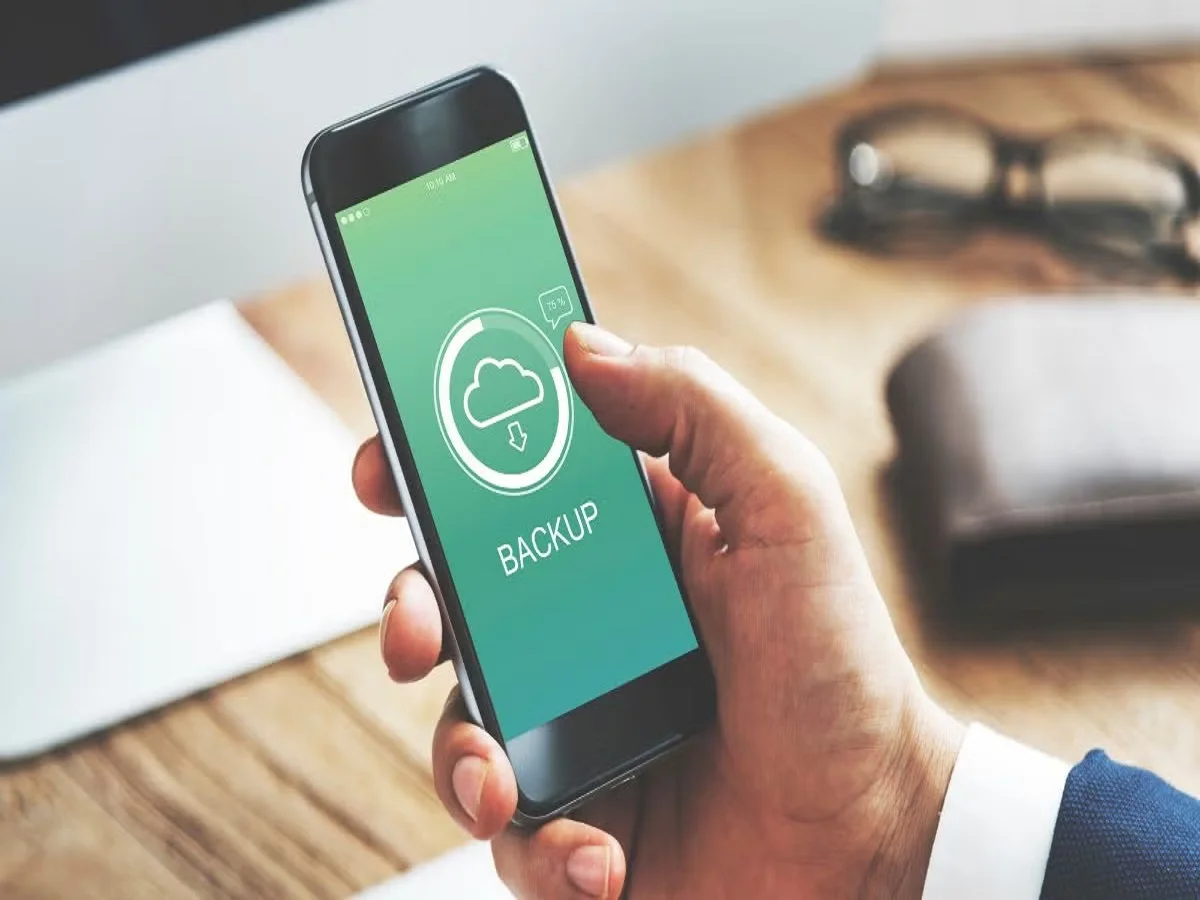
Data Transfer One Phone to Another- Want to transfer data to a new phone, know its easy process

Friends, today new phones come in the market every day and people buy new phones as per their needs, which come with more features, but the biggest challenge is not buying a new phone—but transferring important data like photos, contacts, messages, apps and files from the old device to the new device. But did you know that today’s smartphones have in-built tools that make the process of transferring data easy and hassle-free. Let us know its complete details
How to transfer data from one Android phone to another Android phone
Turn on your new Android phone and begin the setup process.
Select “Copy Apps & Data” when asked.
Sign in with your Google Account.
A QR code will appear on both devices.
Scan the QR code to connect both phones.
Select the data you want to transfer, such as:
contacts
Photos and Videos
message
Apps
device settings
Start the transfer process.
Depending on the amount of data, the transfer may take from 30 minutes to several hours. Keep both phones close and do not allow interruptions in the process.
How to Transfer Data between Android and iPhone
Android to iPhone
Apple provides a special app called ‘Move to iOS’ for easy data migration.
Follow these steps:
Download ‘Move to iOS’ on your Android device.
During iPhone setup, select “Move Data from Android”.
Enter the code shown on the iPhone into the Android device.
The phones will connect via a temporary Wi-Fi network.
Select the content you want to transfer.
Contacts, messages, photos, and other supported data will be copied automatically.
iPhone to Android
If you’re moving from iPhone to Android:
Start setting up your new Android phone.
Select “Copy from iPhone”.
Connect both devices using a cable or Wi-Fi.
Follow the on-screen instructions to transfer your data. Important points to keep in mind before transferring data
Before starting the transfer process, keep these things in mind:
WhatsApp chats have to be transferred separately
Many users think that WhatsApp messages are transferred automatically, but this is not always the case. WhatsApp chats usually have to be transferred separately by QR code or by restoring a backup.
Some files may not be transferred automatically
music files
PDF document
Notes and other app-specific data
You can back up and restore these files using a cloud storage service like Google Drive or Dropbox.
keep device charged
Low battery may interrupt the transfer process and cause problems in data transfer. Make sure both phones remain fully charged during the entire process.

Comments are closed.