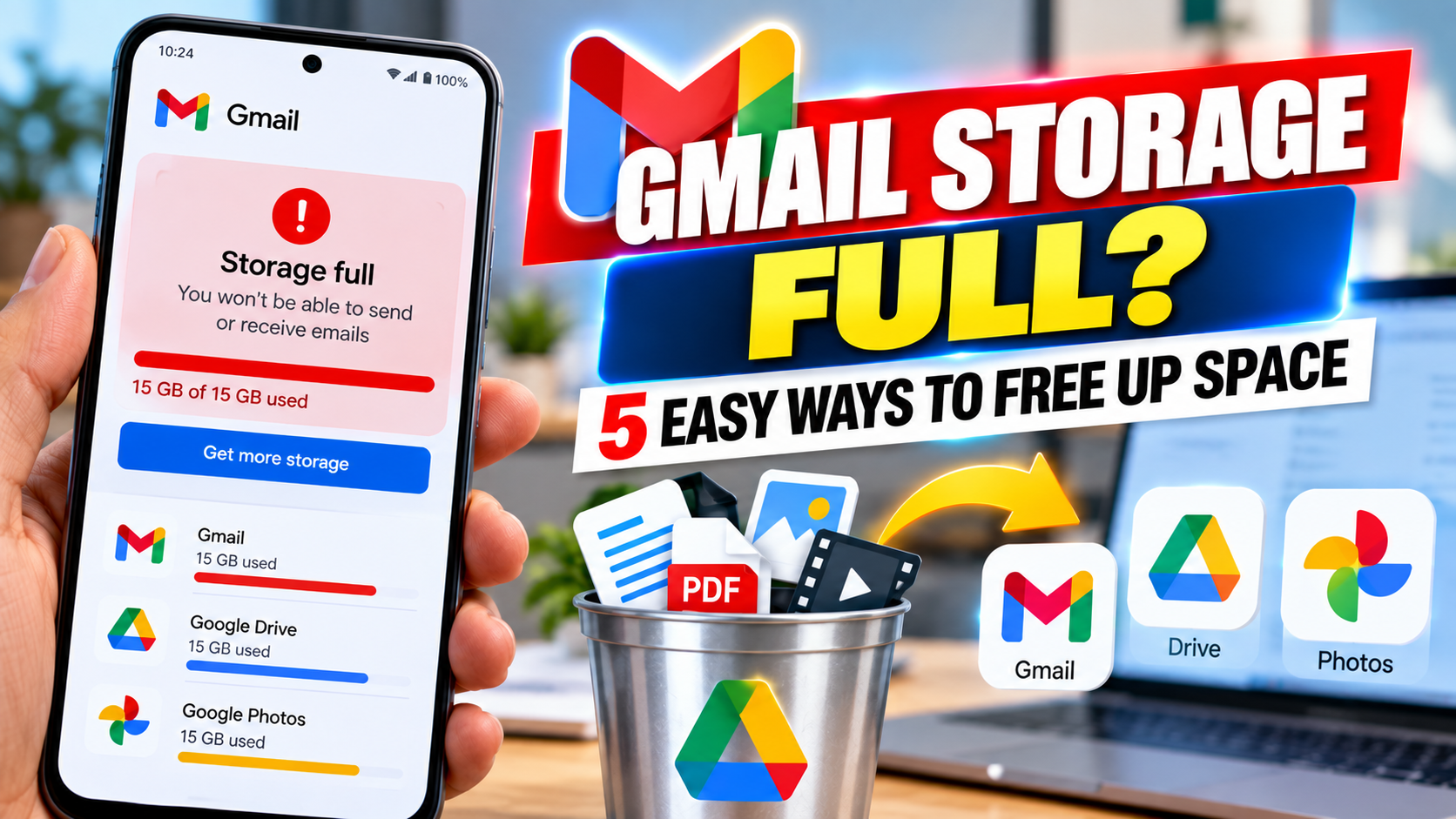
Running out of Google storage can quickly become a problem. When your account reaches its storage limit, Gmail may stop receiving new emails, while services such as Google Drive, Docs and Google Photos can also be affected.
Instead of deleting files randomly, it is better to first identify what is consuming the most space. Large emails, old attachments, unnecessary Drive files and high-resolution photos and videos can all contribute to a full account.
Why Does Gmail Show a Storage Warning?
Gmail, Google Drive and Google Photos share the same Google storage space. This means that even if your Gmail inbox does not contain many messages, large files stored in Drive or a substantial collection of backed-up photos and videos can use up the available storage.
Before deleting anything, check your storage settings to determine which service is using the most space. This can help you focus your cleanup efforts where they are needed most.
Clean Up Gmail, Drive and Google Photos
Gmail can be cleaned up by searching for messages containing large attachments. For example, typing larger:10M into the Gmail search bar will show emails larger than 10 MB. The number can be changed depending on how much space you want to recover.
Review the results carefully. If an email contains an important attachment, download or save the file somewhere secure before deleting the message.
Remember that deleting an email does not immediately remove it from your storage. Messages moved to Trash continue to occupy space until the Trash is emptied. If you are certain that the contents are no longer required, open Trash and select Empty Trash now.
The same applies to the Spam folder. Check it briefly for any legitimate messages before clearing it.
Google Drive should also be reviewed because large videos, ZIP files and documents can consume considerable storage. Sort your files by size and remove items you no longer need. If a file could be useful later, download a copy before deleting it. Also remember to empty the Drive Trash.
Google Photos can take up substantial storage when large numbers of photos and videos are backed up. Review the library for duplicate or unwanted content and remove files you no longer need. Important and irreplaceable photos should have a backup before deletion.
Archive Emails or Back Up Important Files
If you are unsure whether an email should be deleted, avoid taking unnecessary risks. Important information can be downloaded and stored elsewhere, or details can be forwarded to another email account.
Another option is to archive emails. Archiving removes messages from the main inbox and keeps the inbox organised, but it does not free up storage. Actual storage space is recovered only when unnecessary content is deleted.
For users who want a simpler way to manage their Google storage, Google One provides storage-management tools that can show how much space is being used across Gmail, Drive and Google Photos.
Consider Expanding Your Google Storage
If your account regularly reaches its storage limit, expanding your available Google storage may be an option. Google offers additional storage through paid plans, allowing users to increase capacity for their growing collection of emails, files, photos and videos.
The key is to manage storage systematically rather than deleting content in a hurry. Remove files and messages you no longer need, keep secure backups of important information and consider additional storage if your digital requirements continue to increase.
Disclaimer: This article is intended for general informational purposes only. Google storage features, limits and available options may change over time and can vary according to the account or service being used. Users should review their files carefully and maintain appropriate backups before permanently deleting any important data.