
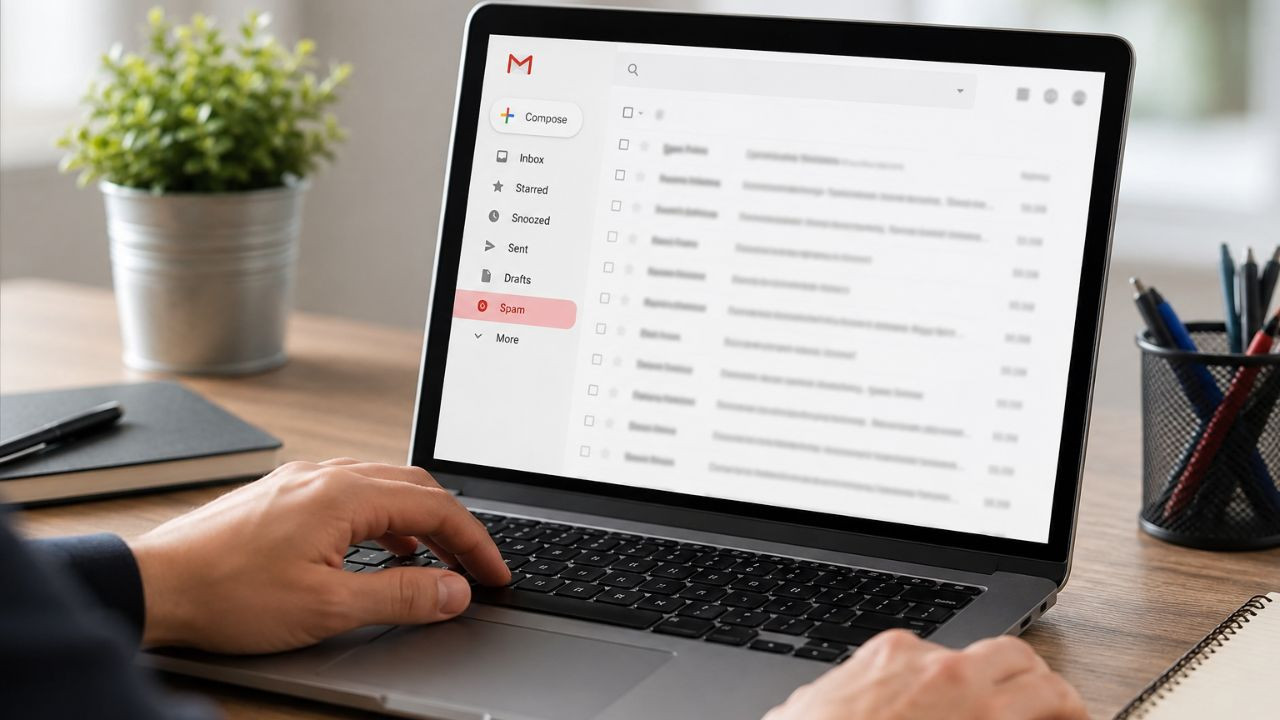

New Delhi:Many times it happens that instead of reaching the inbox, important emails go straight to the Spam folder. In such a situation, the user does not get information about it and keeps waiting for the mail in the inbox itself. Due to this, important information can be missed and time is also wasted, the good thing is that there is an easy way to avoid this problem, by adopting which you can prevent your important emails from going into spam.
Why do important emails go to Spam?
Gmail uses AI-based spam filters to identify emails and send them to different folders. Its job is to identify fake and unwanted emails and send them to the Spam folder, so that your inbox remains clean. However, sometimes this system makes a mistake and considers any important email as spam. This may happen if the email comes from a new sender, the content appears promotional, or you have previously marked a similar email as spam. The good thing is that there is such a setting in Gmail, through which you can decide which emails will never be sent to Spam.
How to prevent important emails from going to spam?
If your important emails are repeatedly going to Spam folder, then there is no need to worry. Follow these easy steps:
1. Open Gmail on your computer.
2. Click on More on the left and go down and open the Spam folder.
3. Open the email you want to move to your inbox.
4. Click on Not spam at the top.
After this, Gmail will consider that email as safe and in future will try to show the mail coming from the same email address directly in the Inbox.
Want to avoid the hassle of spam forever?
If emails from a particular person or company are always important for you, then you can create a Gmail Filter for them. This will prevent their emails from going to Spam.
Method of making filter:
1. Open Gmail on your computer.
2. Click on the Show Search Options icon on the right side of the search bar.
3. Enter the email address of that person or company in the From box.
4. Click on Create filter.
5. Tick the box in front of Never send it to Spam and then click on Create filter.
6. Finally click on Create filter, after this all new emails coming from that email address will come directly to the Inbox and Gmail will not send them to Spam.
What to do in Gmail app?
If you use the Gmail app on mobile or tablet, there is no option to create filters, but you can mark any important email as not spam.
For this follow these easy steps:
1. Open the Gmail app on your phone.
2. Tap on Menu and go to Spam folder.
3. Open the important email that has been sent to Spam.
4. Tap on the Not spam option above.
After this, Gmail will consider that email as safe and the chances of showing future mails coming from the same email address in the Inbox will increase.
How to Not Spam Email in Gmail App?
If an important email has moved to the Spam folder, follow these simple steps to bring it back to the Inbox:
1. Open the Gmail app on your phone.
2. Tap on Menu and go to Spam folder.
3. Open the important email which has been sent to Spam.
4. Tap on the three dots above and select Report not spam option.
After this, Gmail will consider that email as secure and in future, the possibility of sending mail coming from the same email address to Spam will be reduced.
an easy tip
If emails from a person or company are always important to you, save their email address in your Contacts. Gmail usually trusts emails from saved contacts more.
take care
Currently, there is no option to create an email filter in the Gmail mobile app. If you want that the mails from a particular email address never go to Spam, then for this you will have to open Gmail on the computer and set the filter. Once the filter is created, it will keep working automatically.
Overall, if you want your important emails to never go to Spam, then mark the emails you trust as Not Spam, create filters for important email addresses and save emails from important people in your Contacts. By doing this, Gmail understands that these emails are important to you and increases the chances of showing them directly in the Inbox in the future.

Comments are closed.