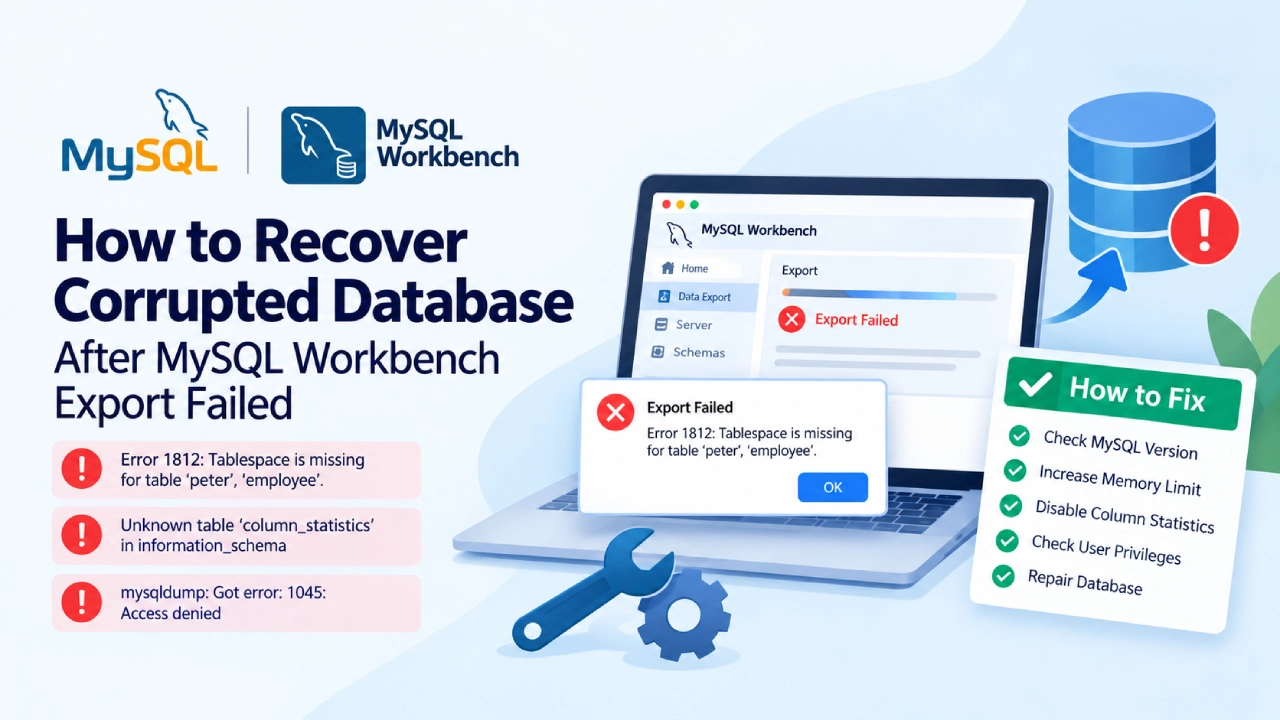
Exporting a database is required for creating backup, migrating data, or sharing data. You can export a database using the Import and Export Wizard feature in MySQL Workbench. However, while exporting the MySQL database in WorkBench, you may fail to export the database and face different errors. Some of them are:
Error 1812: Tablespace is missing for table ‘peter’, ‘employee’, when doing lock table.
Unknown table ‘column_statistics’ in information_schema error
mysqldump: Got error: 1045: Access denied
Such errors can occur due to various reasons. In this article, we will discuss the troubleshooting methods to resolve the “Can’t export my database from MySQL Workbench” issue. We will also outline a professional MySQL repair tool that can help resolve MySQL database export errors if they occurred due to corruption in InnoDB/MyISAM tables.
If you suspect corruption is behind the failure, you can also run an online MySQL repair on the affected tables first to see what can be recovered, and then work through the fixes below.
Why you can’t Export Database from MySQL Workbench?
Some of the reasons why you can’t export a database from MySQL Workbench are:
- You are trying to export an incorrect database table.
- The database tables you are trying to export are corrupted or in an unsupported format.
- The database you’re attempting to export requires SUPER privileges.
- The database file is too large.
- Incorrect MySQL Server path.
- Outdated or incompatible MySQL Server version.
- Insufficient disk space.
- Column-statistics option is enabled.
How to Fix Can’t Export my Database from MySQL Workbench Issue?
To fix this issue, follow the below troubleshooting methods.
Method 1 – Check and Fix MySQL Server Version Mismatch
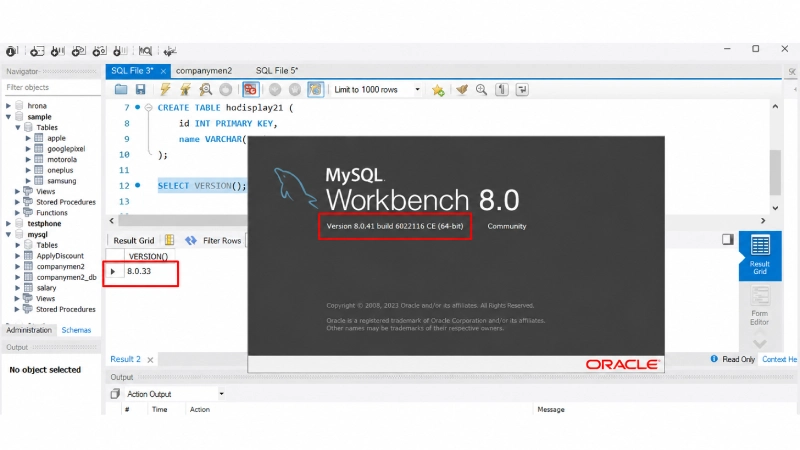
When trying to backup or export a database, you may fail to export the database from MySQL workbench due to MySQL version mismatch. For example, you are using Workbench client lower than 8.0 and the connected MySQL server version is different. To export the database, Workbench runs queries like information_schema.column_statistics, which is not supported in Workbench versions lower than 8.0. To check this, you can run the following query:
SELECT VERSION();Next, go to Help and then select About Workbench.

Now compare the versions. If you found major differences, then update the WorkBench to match it.
Method 2 – Increase Memory Limit for MySQL
You may fail to export large-sized database containing BLOGs, images, etc., in MySQL. It usually happens when the data is larger than the allowed max_allowed packet. In this case, you can try to increase the memory limit for MySQL by executing the following command:
SET GLOBAL max_allowed_packet = 1073741824;
Alternatively, you can increase the memory limit from the Data Export window. Here’s how to do so:
- In your MySQL Workbenchclick Serverselect Data Export.
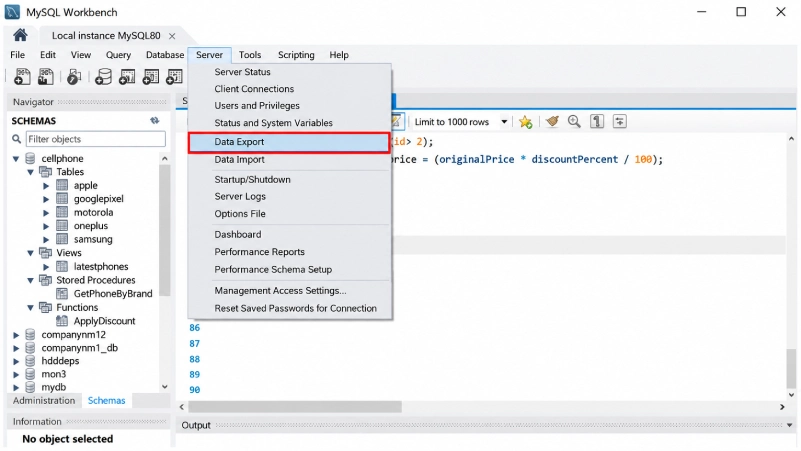
- Under Data Exportclick Advanced Options.
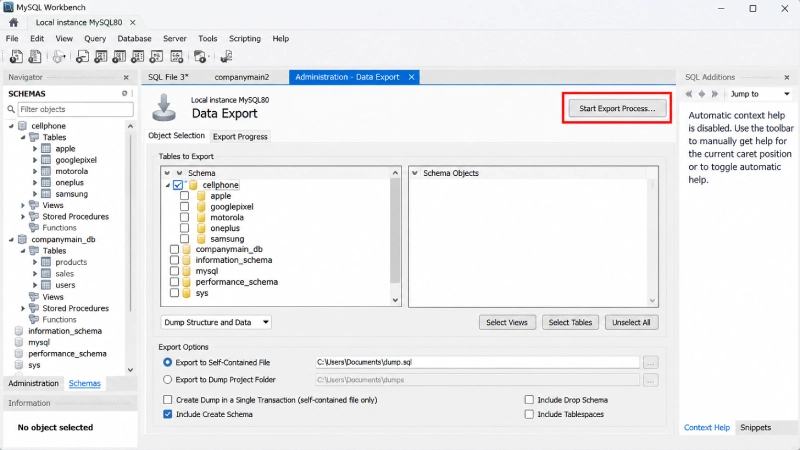
- Now scroll down and set the “The maximum size of one packet or my generated/intermediate string” to 1 GB (1024 MB).
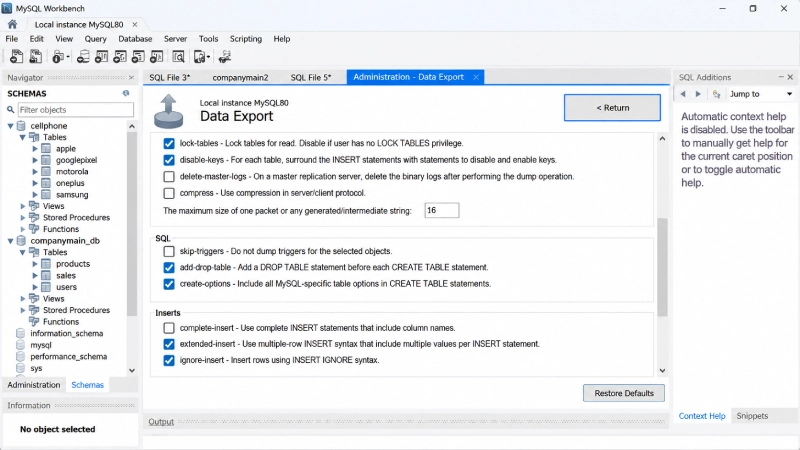
Method 3 – Disable the column-statistics Option
One of the most common database export errors in MySQL is the Unknown table ‘column_statistics’ in information_schema error. It usually occurs when the Workbench fails to read the column_statistics table at the time you try to export the database. This can happen when the column_statistics option is enabled. You can check and disable this option to resolve the database export error in MySQL. To do so, follow the below steps:
- In Workbench, click Server > Data Export.
- Under Data Exportuncheck the option “column-statistic- writing ANALIZE TABLE statements to generate statistics histograms.”

Method 4 – Check User Privileges
You may fail to create database backup in MySQL if you don’t have the desired privileges. The most common export error that occurs due to permissions is as follows:
mysqldump: Error: ‘Access denied; you need (at least one of) the PROCESS privilege(s) for this operation’ when trying to dump tablespaces
To resolve this, check and grant the necessary permissions. To check permissions, run the SHOW GRANTS command.

Now check all the permissions. You should have PROCESS, CREATE, and SELECT privileges to create a dump file successfully. Use the GRANT command (see the below example) to give the permissions.
GRANT PROCESS ON *.* TO 'root'@'localhost';Method 5 – Check and Repair MySQL Database
Corruption in the MySQL database is also one of the reasons for database export errors in MySQL. Let’s try to understand issue with an example:
I have tried to export an InnoDB table in the database named ‘peter’ using the Import and Export feature in MySQL Workbench. The export of data fails with the following error message:
Error 1812: Tablespace is missing for table ‘peter’, ‘employee’, when doing lock table.
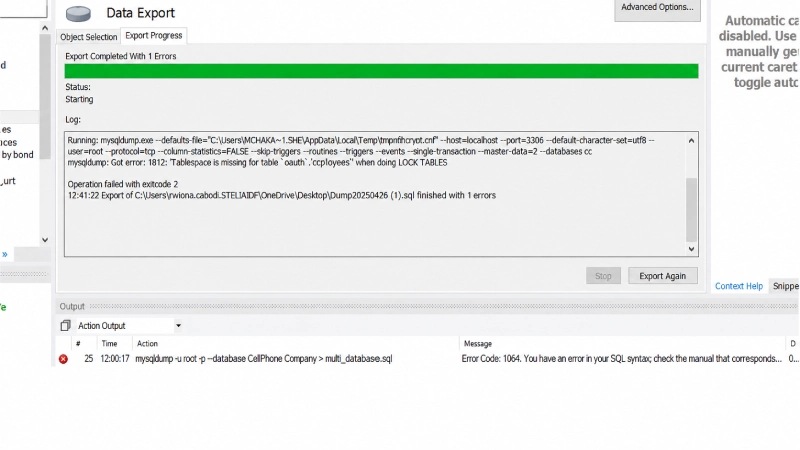
To confirm the error has occurred due to corruption, I executed the CHECK TABLE command.
CHECK TABLE peter;
It displays the error – Table ‘sys.peter’ doesn’t exist, which indicates corruption in the table.
If you can’t export your database using MySQL Workbench due to corruption or .idb tablespace files of the InnoDB tables, then you can repair the database using a professional MySQL repair tool, like Stellar Repair for MySQL. It can quickly and easily repair InnoDB tables and MyISAM tables with complete integrity. It can repair severely corrupt MySQL database and recover all the objects, including tables, table space, and primary keys, with complete integrity. It also supports selective recovery of database objects and allows you to save the repaired files in multiple formats. Also, it is compatible with both Windows and Linux operating systems.
To learn how this advanced SQL recovery tool helps to repair MySQL database, watch this video.
Steps to Prevent Database Export Errors in MySQL Workbench
Follow the following preventive measures:
- Before trying to export the database, check the integrity of database by executing the CHECK TABLE command.
- Make sure your MySQL Workbench is updated.
- Ensure MySQL Workbench version matches with the MySQL Server.
- Always run SHOW GRANTS command to check the permissions on the database before performing the export process.
To Conclude
Above, you have learned the methods to resolve the “Can’t export my database” issue in MySQL Workbench. To resolve the export errors in MySQL, the first thing is to find its exact cause. If severe corruption in the database is preventing you from exporting the database, then use a professional MySQL repair tool – Stellar Repair for MySQL. It can quickly repair the corrupt MySQL database and recover all the tables and other objects with no data loss.
The Workbench export process usually fails due to version mismatches or unsupported queries. You can prevent such issues by using the mysqldump command-line utility instead.